$ man getting-started

Install Swavan SSH Studio, complete first launch, and set up your secure vault. Your credentials are encrypted locally — nothing leaves your device.

Platforms
macOS · Windows · Linux · iOS · Android (coming soon)
Encryption
ChaCha20-Poly1305 + Argon2 key derivation
Storage
100% local SQLite — no cloud sync required
Price
Free to use
1
Download and install

Visit the GitHub Releases page and download the build for your platform.

  • macOS: .dmg universal binary (Apple Silicon + Intel)
  • Windows: .msi or .exe installer
  • Linux: .AppImage (no install required — see Installation section for FUSE setup)
  • iOS / Android: Available via the App Store and Google Play
2
Choose vault setup method

On first launch you will see the vault setup screen. Three options are available:
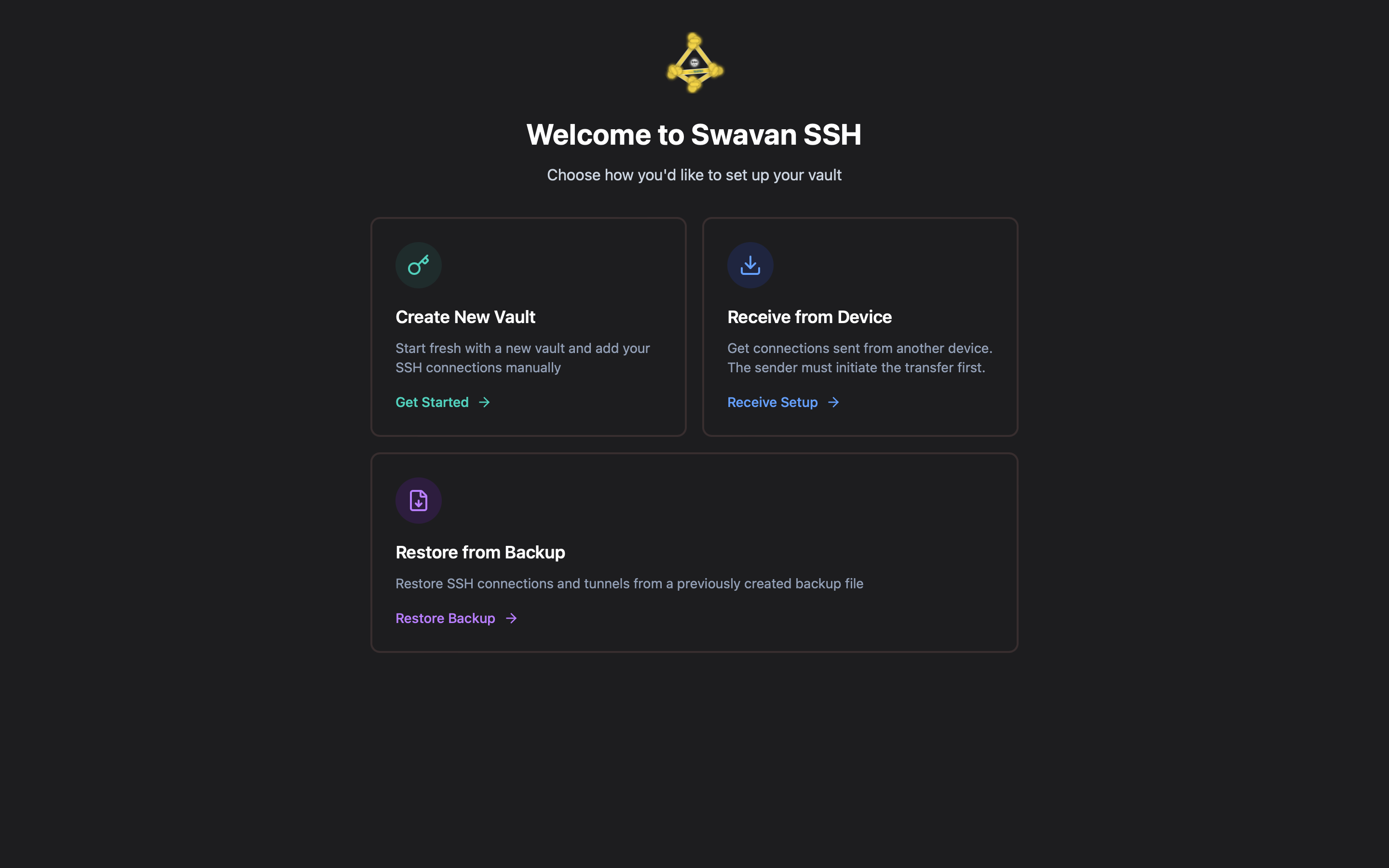
Initial vault setup screen showing three options
Vault initialization — choose your setup method
  • Create New Vault — start fresh and add connections manually
  • Receive from another device — encrypted P2P transfer from an existing device
  • Restore from backup — restore from a previously exported encrypted backup file
3
Create your master password

Choose "Create New Vault", enter a strong master password, confirm it, then click Initialize Vault.
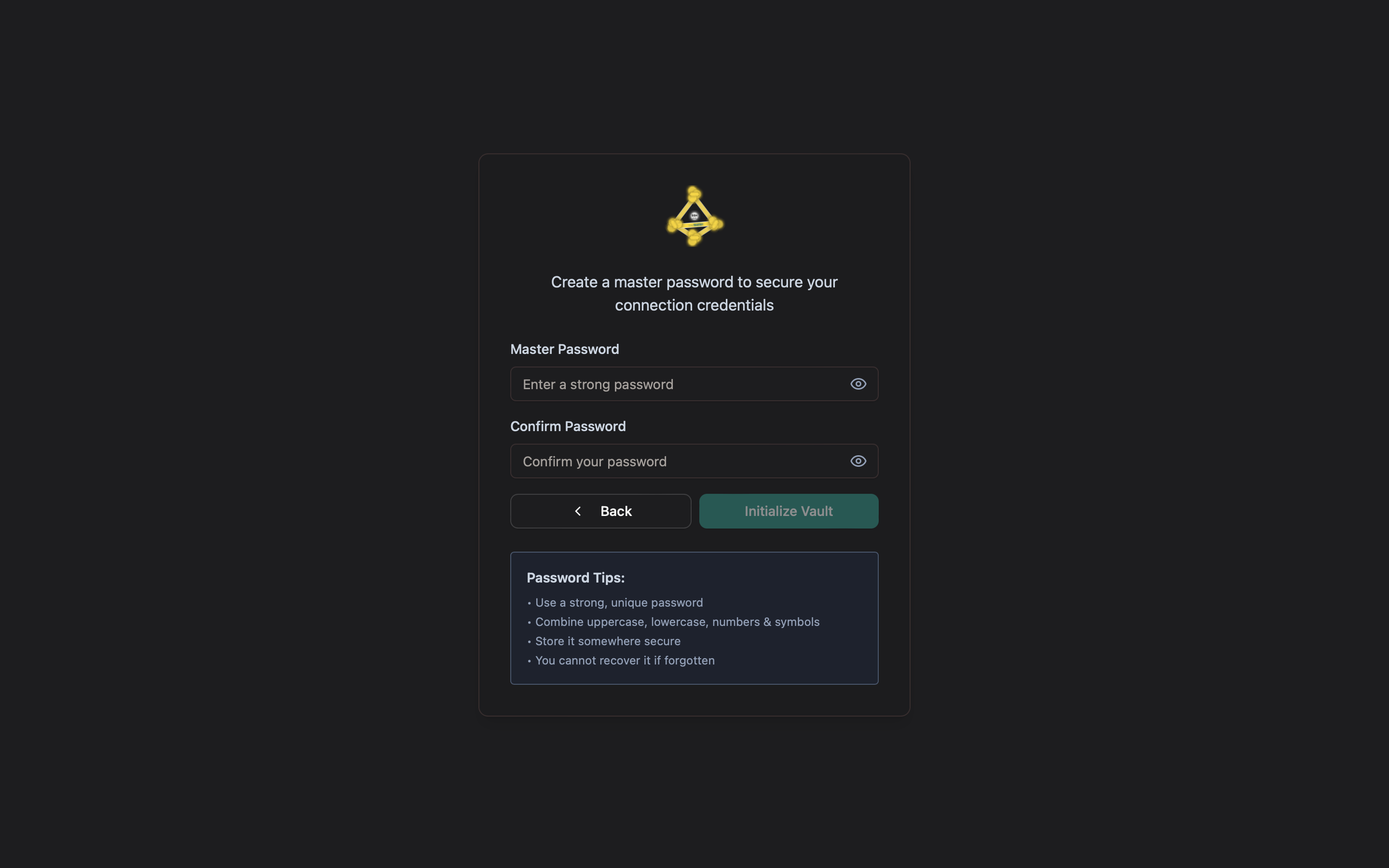
Master password creation form
Create master password — this encrypts all stored credentials
[warn]
There is no password recovery. If you lose your master password and have no backup, your stored credentials cannot be recovered. Store it in a password manager.
4
Unlock the vault on subsequent launches

Every time you open the app, enter your master password to unlock the vault.
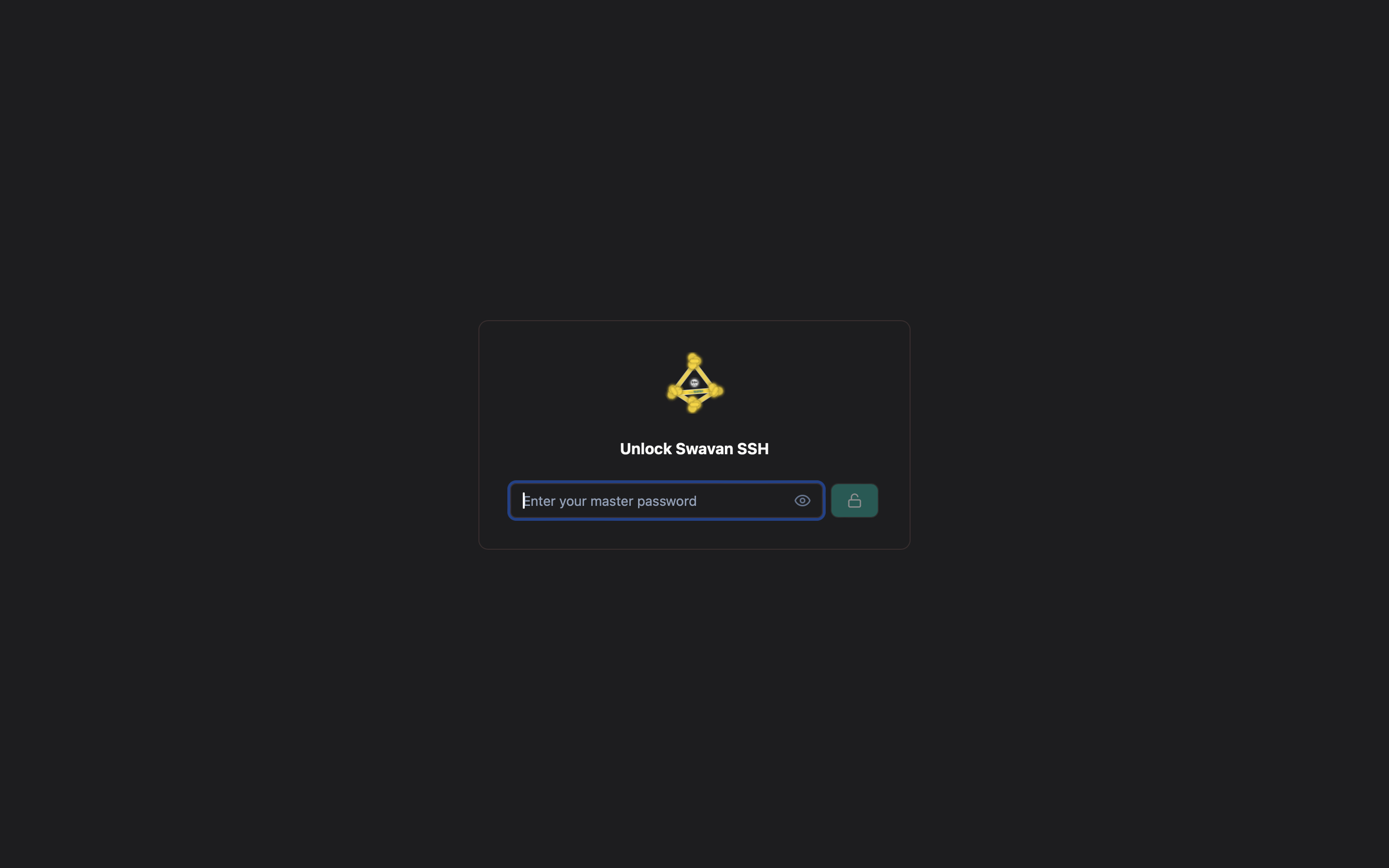
Vault unlock screen
Unlock screen — enter master password to access credentials
[tip]
After unlocking once, you can enable biometric unlock (Touch ID, Face ID, Windows Hello) so future launches require only a fingerprint or face scan. Enable it in Settings → General → Vault Security.
5
Main application screen

After unlocking you will see the full application. The sidebar gives access to all features.
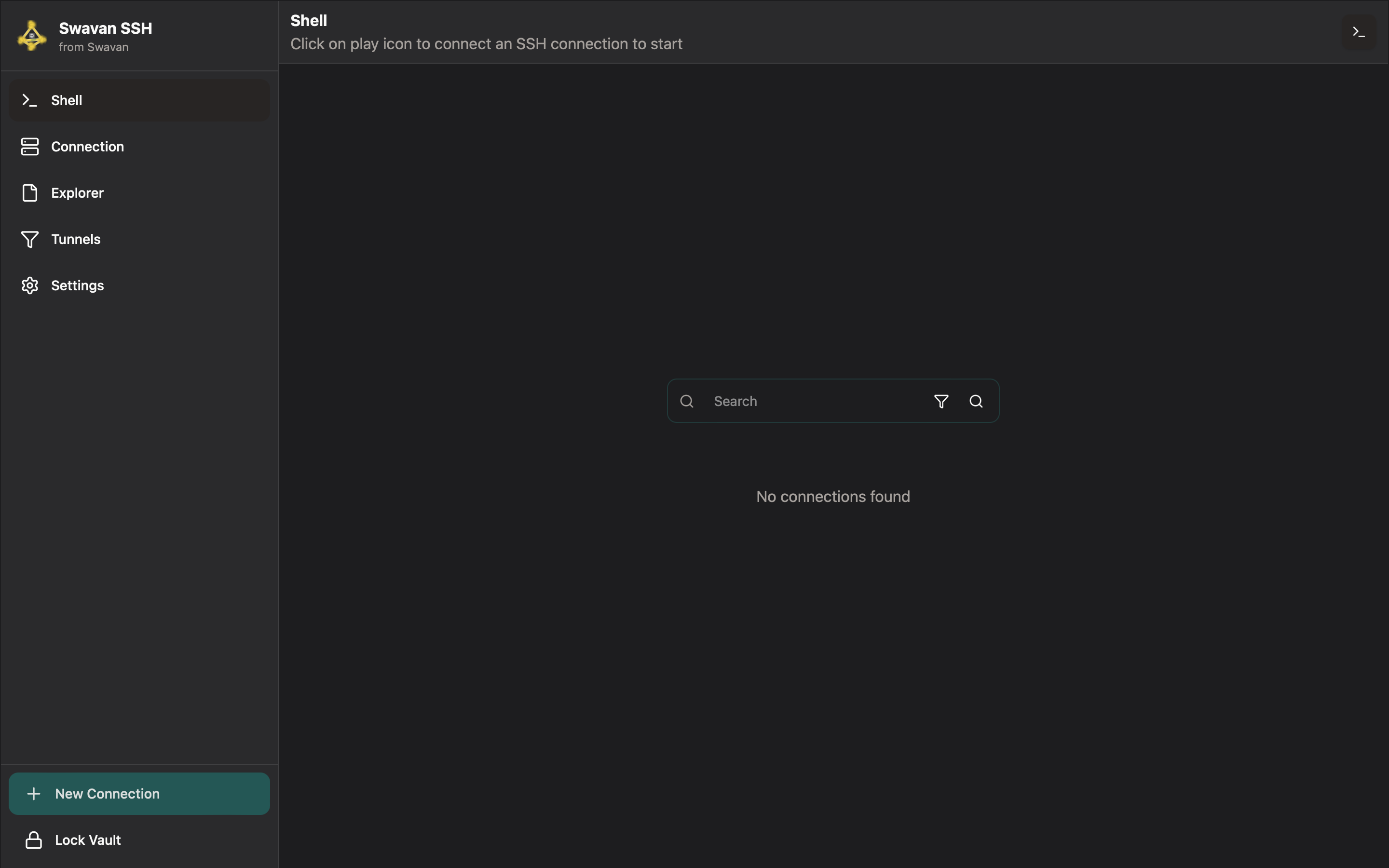
Main application screen
Main screen — sidebar navigation to all features
  • Terminal icon — multi-tab SSH terminal sessions
  • Connections icon — manage saved SSH connections
  • Explorer icon — remote file browser and editor
  • Tunnels icon — SSH port forwarding and SOCKS proxy
  • Settings icon — preferences, security, customization
$ man ssh-connections

Create, edit, organize, and connect to SSH servers. Supports password, private key, SSH agent, and multi-factor auth. Connection tags, SSH config import, and host key verification (TOFU) included.

1
Connections screen overview

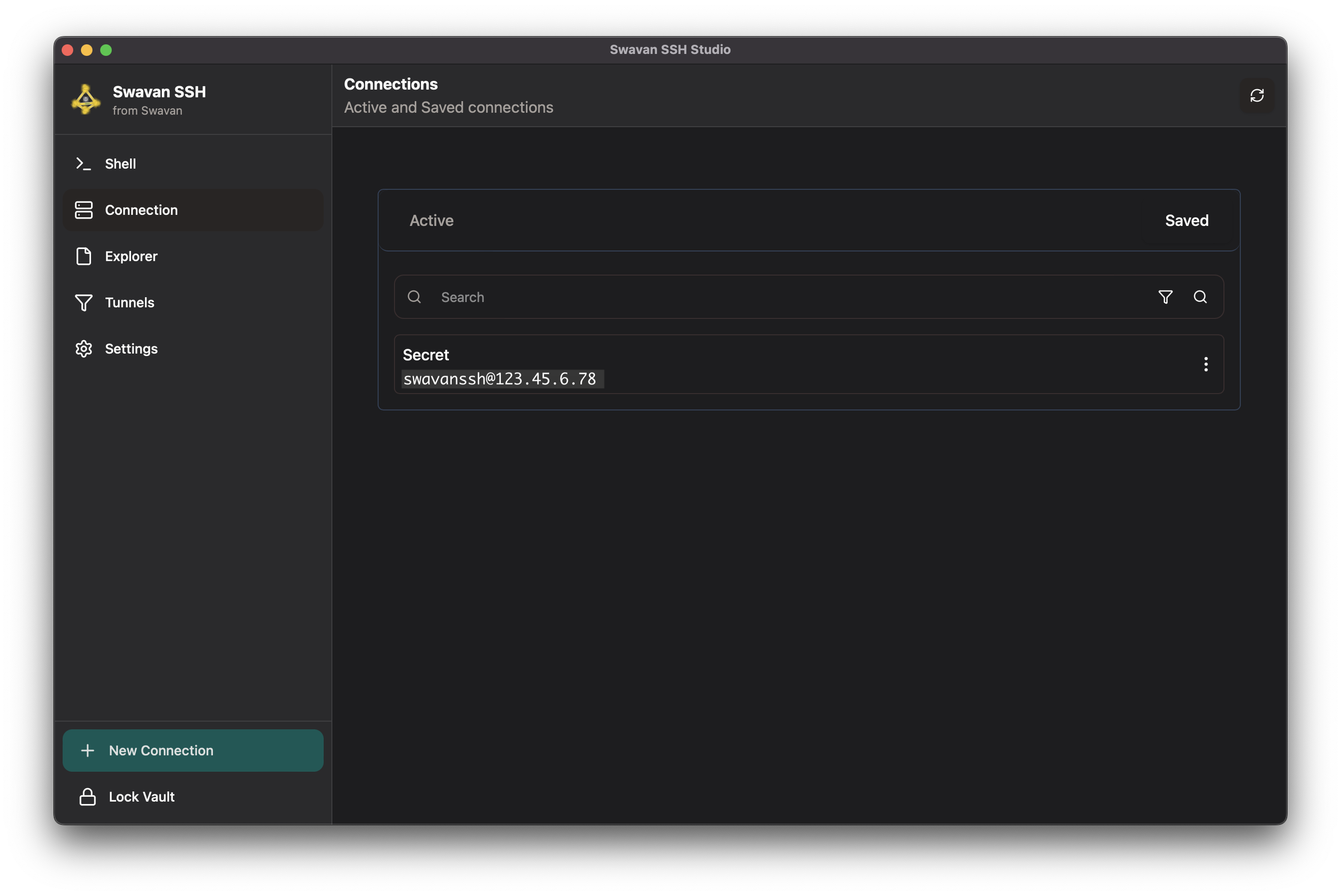
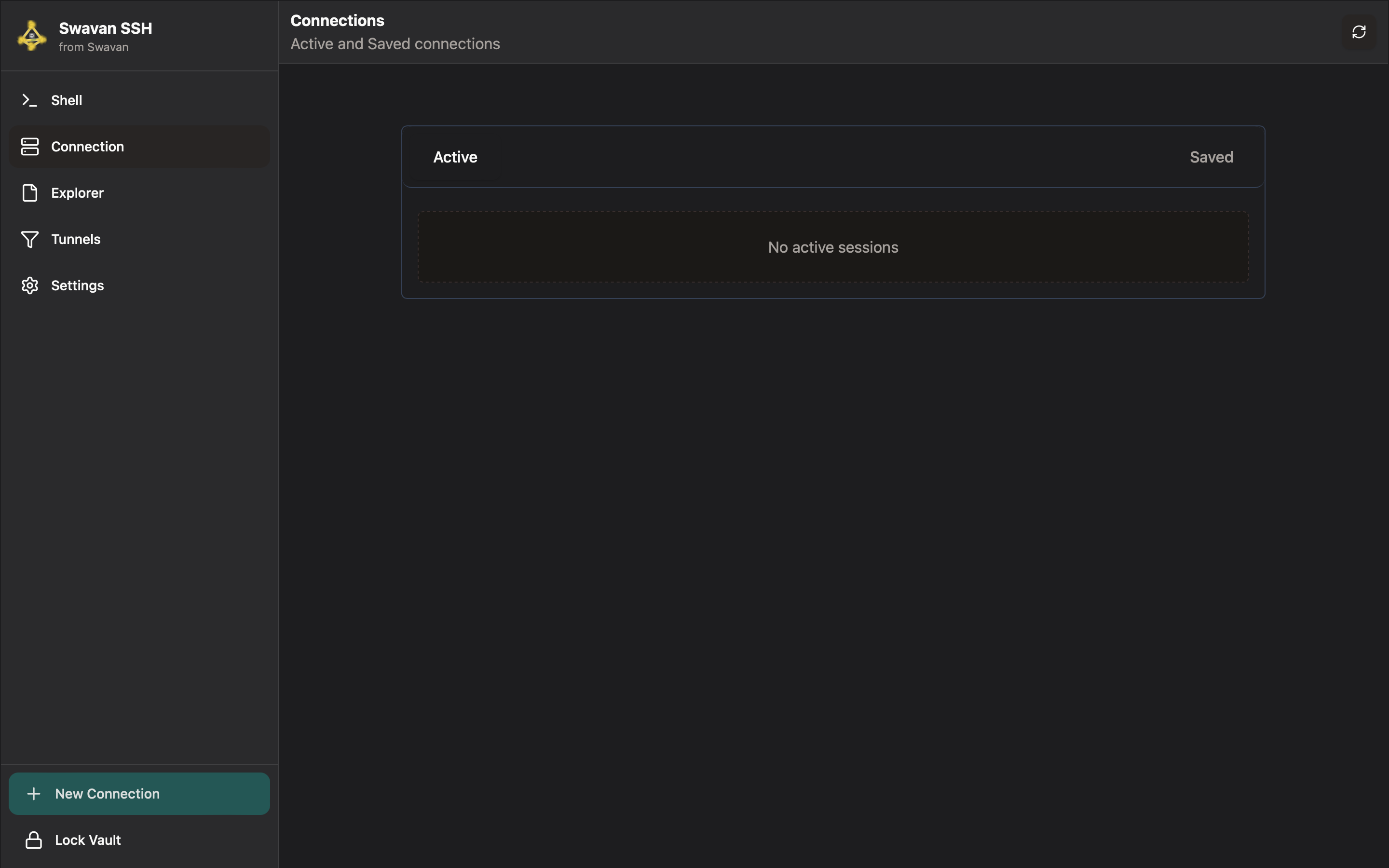
Open the Connections screen from the sidebar. It shows your active sessions at the top and all saved connection profiles below.

Connections screen with saved connections list
Connections screen — active sessions and saved profiles
2
Create a new connection

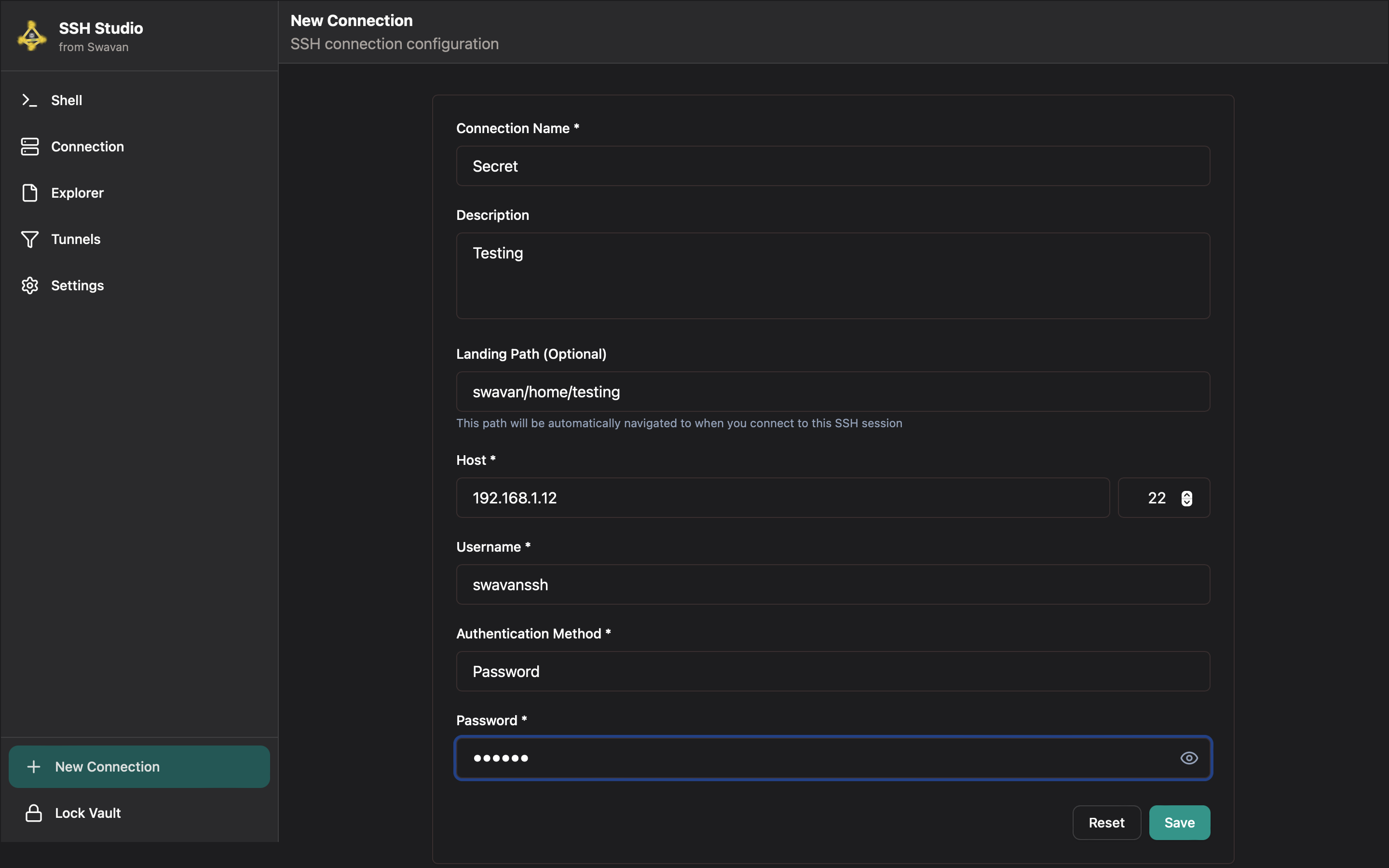
Tap + New Connection. Fill in the required fields marked with *.

New connection configuration form
New connection form — configure host, port, auth method
Name *Display name for the connection (e.g., "Production Web")
Host *Server hostname or IP address
Port *SSH port (default: 22)
Username *SSH login username
Auth MethodPassword, Private Key, SSH Agent, or Password + Key
Landing PathOptional starting directory after connect (e.g., /var/www)
TagsOptional labels for filtering (e.g., "production", "dev")
3
Authentication methods

Four auth methods are supported:

  • Password — standard SSH password authentication
  • Private Key — paste key content or supply a file path; supports RSA, Ed25519, ECDSA
  • SSH Agent — delegates auth to the system SSH agent socket; no credential stored in the app
  • Password + Key (MFA) — private key authenticates first, password is required as a second factor
[tip]
SSH Agent auth is the most secure option for desktop. The app never sees your private key — the OS agent handles signing. Recommended for servers with sensitive data.
4
Connection tags and filtering

Add tags to connections to group them by environment, project, or any label you choose. Use the search bar and tag filter to quickly find connections in large lists.

  • Tags are free-text — type any label during connection creation or edit
  • Filter connections by tag from the Connections screen search bar
  • Multiple tags per connection are supported
5
Host key verification (TOFU)

On first connection to a new server, the app records the server's host key fingerprint using Trust On First Use (TOFU). On subsequent connections, if the host key changes, you will see a warning before proceeding.

[warn]
A changed host key may indicate a man-in-the-middle attack or server reinstallation. Only accept a changed key if you are certain the server was legitimately re-provisioned.
6
Editing and managing connections

Long-press or use the context menu on any connection to access edit, duplicate, delete, and share actions. All changes are encrypted and saved immediately.

Connection list with a saved connection entry
Connection entry — tap to connect, hold or use menu for actions
$ man terminal-sessions

Multi-tab SSH sessions with full terminal emulation. Supports drag-to-reorder tabs, broadcast commands to multiple sessions, a mobile command bar, and a script runner for repeatable tasks.

1
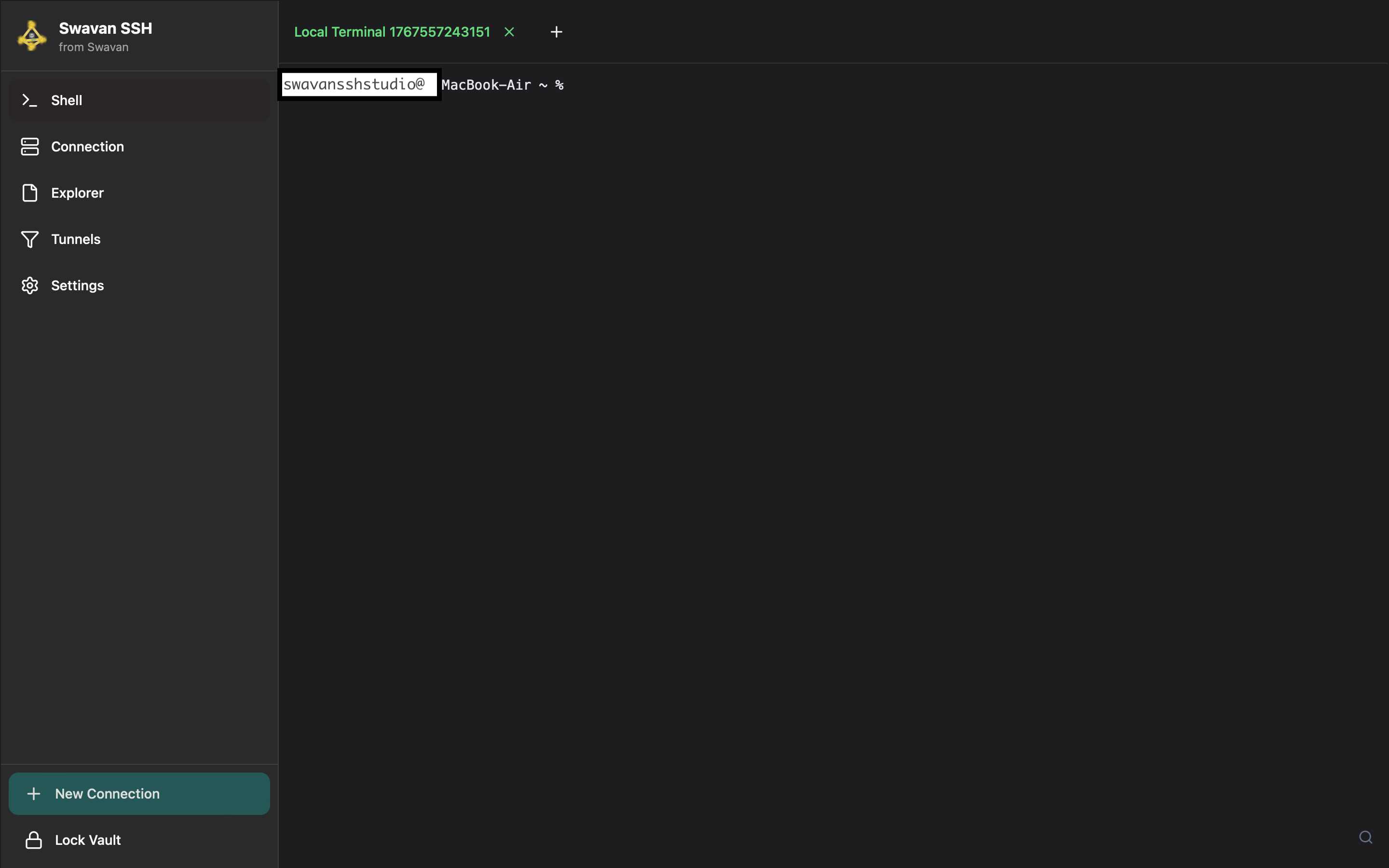
Opening a terminal session

From the Connections screen, tap the play button next to any saved connection. A new tab opens in the terminal view. You can open multiple tabs to the same or different servers.

Terminal view with an active SSH session
Terminal — full ANSI color and UTF-8 support
2
Multi-tab session management

Up to 10 terminal tabs can be open simultaneously. Each tab is an independent SSH session.

  • Click the + button in the tab bar to open another terminal to any connection
  • Duplicate an existing tab with the duplicate icon — reconnects to the same host in a new tab
  • Drag tabs left or right to reorder them
  • Close a tab with the × button — the session disconnects cleanly
[info]
Tab labels show "Name #2", "Name #3" etc. when multiple tabs connect to the same server, so you can always distinguish them at a glance.
3
Broadcast commands to multiple sessions

Enable broadcast mode to send the same input to all open terminal sessions simultaneously. Useful for running the same command across multiple servers at once.

  • Toggle broadcast mode from the terminal toolbar
  • Keystrokes are echoed to all tabs in real time
  • Disable broadcast to return to single-session input
[warn]
Broadcast mode sends every keystroke to all sessions. Double-check which tabs are open before running destructive commands in broadcast mode.
4
Mobile command bar (iOS / Android)

On mobile, a command bar appears below the terminal with essential control keys that are hard to type on a software keyboard:

  • ^C — send Ctrl+C to interrupt the current process
  • Tab — trigger shell autocomplete
  • ↑ / ↓ — navigate command history
  • Send — send the current input line
  • Esc — send Escape key
[tip]
The mobile command bar repositions automatically when the iOS software keyboard appears, so it always stays visible above the keyboard.
5
Script runner

Select a saved command snippet from the snippet library and inject it directly into the active terminal session. See the Command Snippets section for how to create and organize snippets.

$ man remote-file-browser

Browse, create, rename, and delete files and directories on remote servers over SFTP. Supports 50+ file types, multi-tab browsing, and seamless integration with the file editor and transfer tools.

1
Opening the file browser

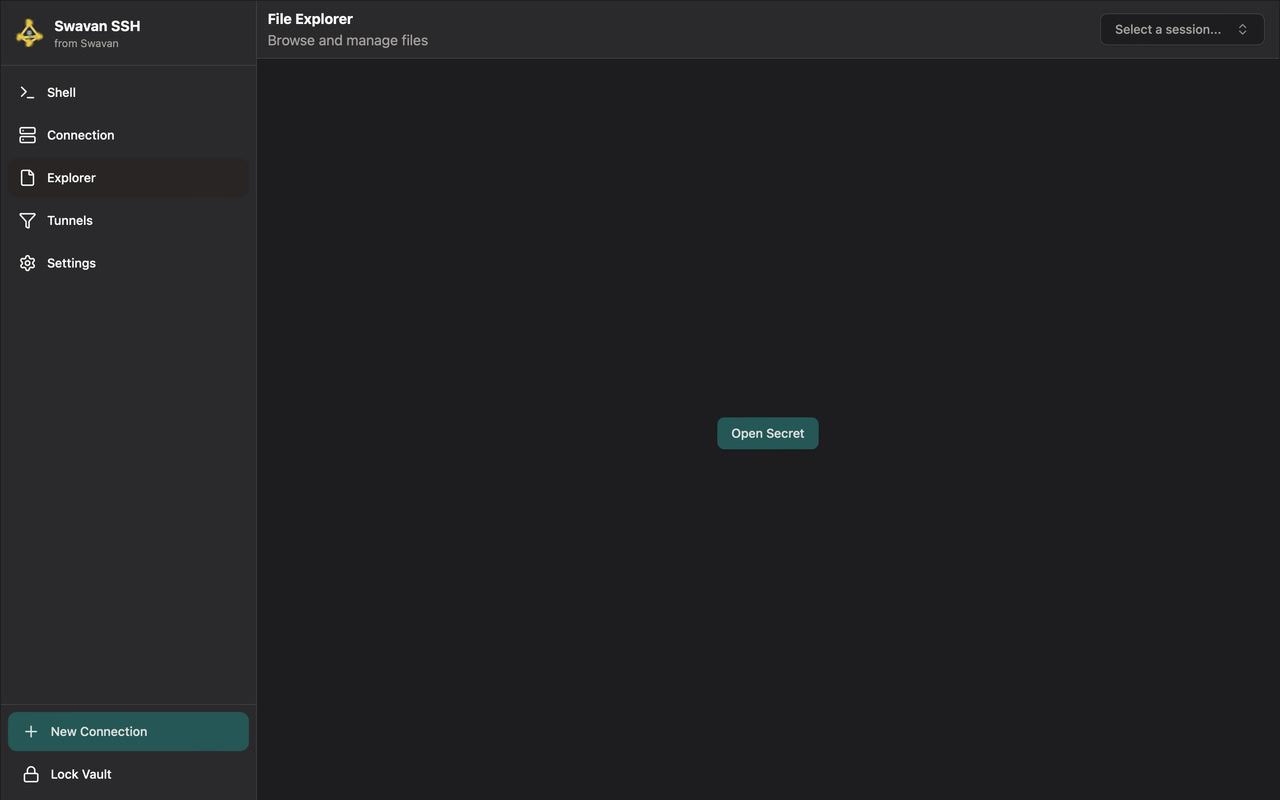
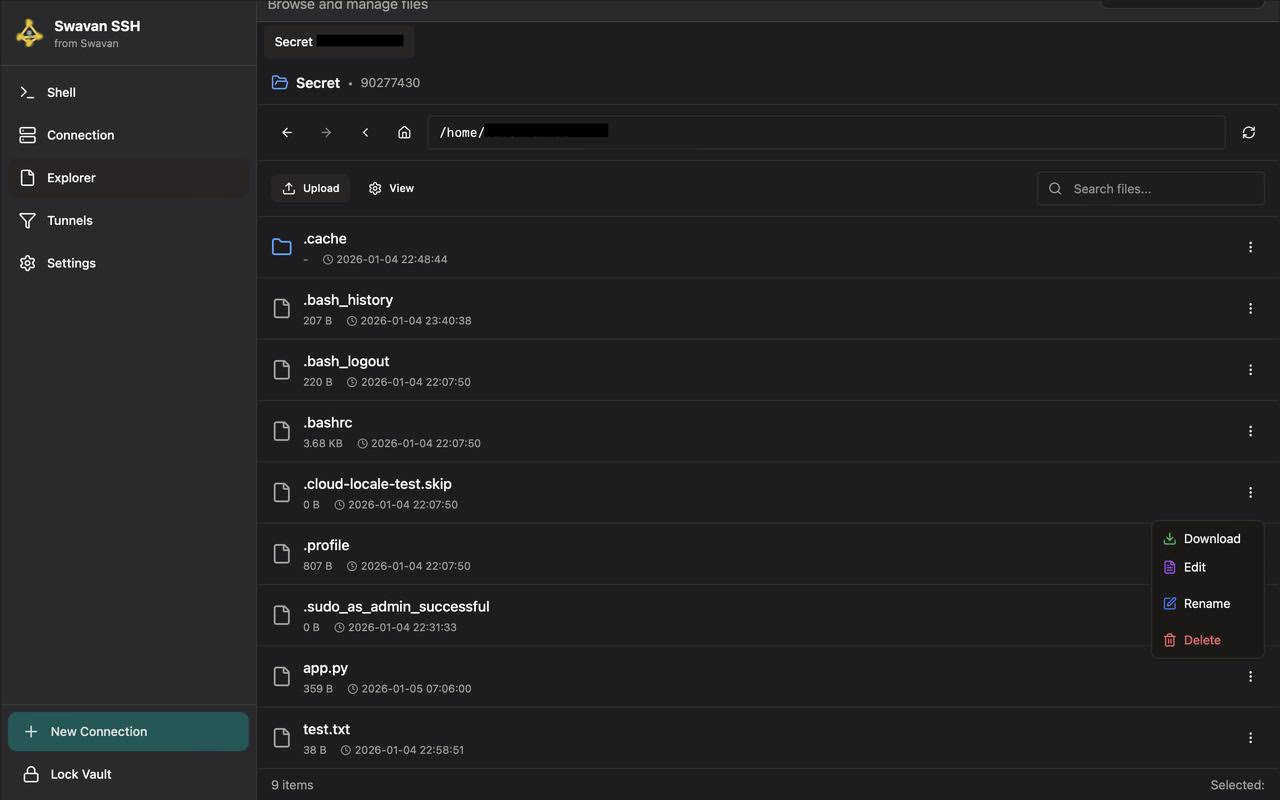
Navigate to the Explorer section from the sidebar, or click the folder icon on a connection card when a session is active. You can also open the file browser directly from an active terminal session.

Explorer session picker screen
Explorer — select an active session to browse its filesystem
2
Navigating the filesystem

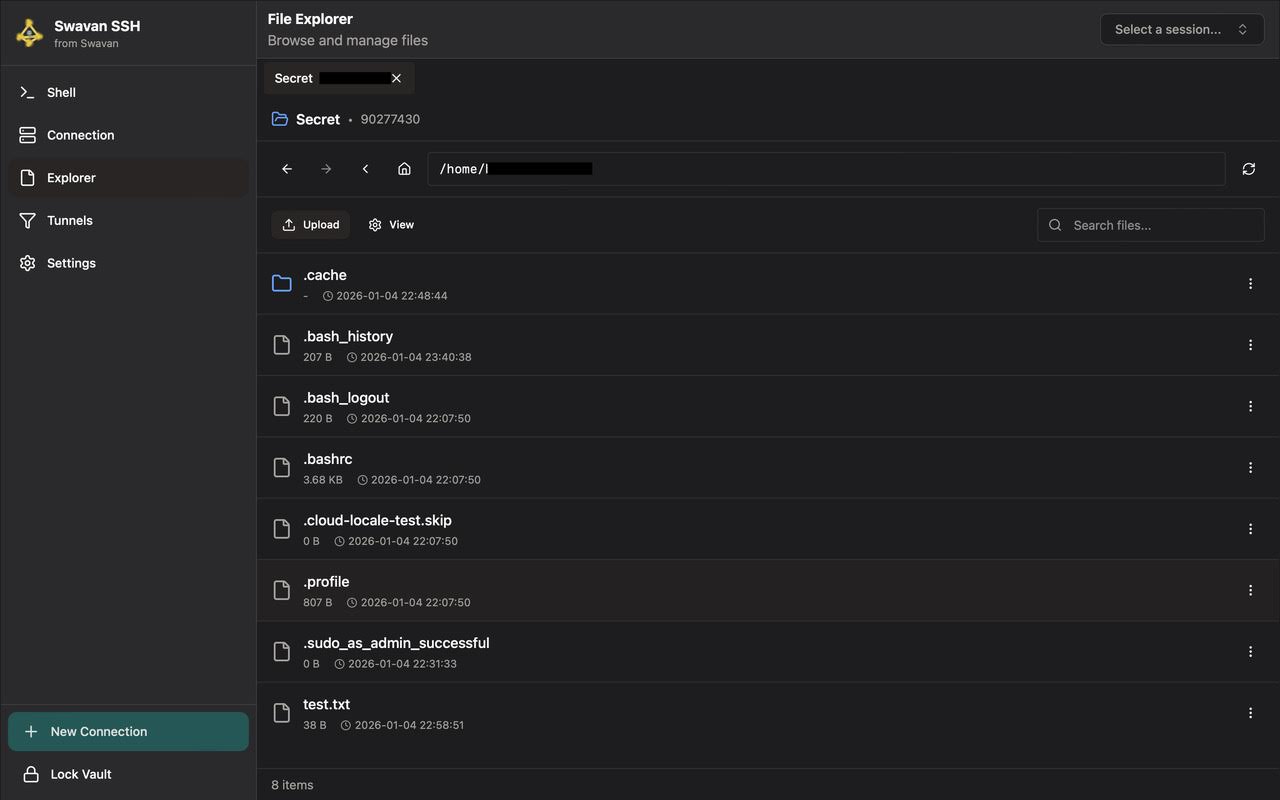
The file browser shows the current directory listing with icons for each file type. Tap a directory to enter it. Use the breadcrumb bar at the top to navigate back up the path.

File explorer listing files and folders
File browser — directory listing with file type icons
  • Tap a folder to navigate into it
  • Tap the breadcrumb segments to jump up the path
  • Use the search icon to filter files by name within the current directory
  • Tap the home icon to jump to the session's home directory
3
Creating files and directories

Use the + button in the toolbar to create a new file or a new directory at the current path. Enter the name in the prompt that appears.

4
Renaming files and directories

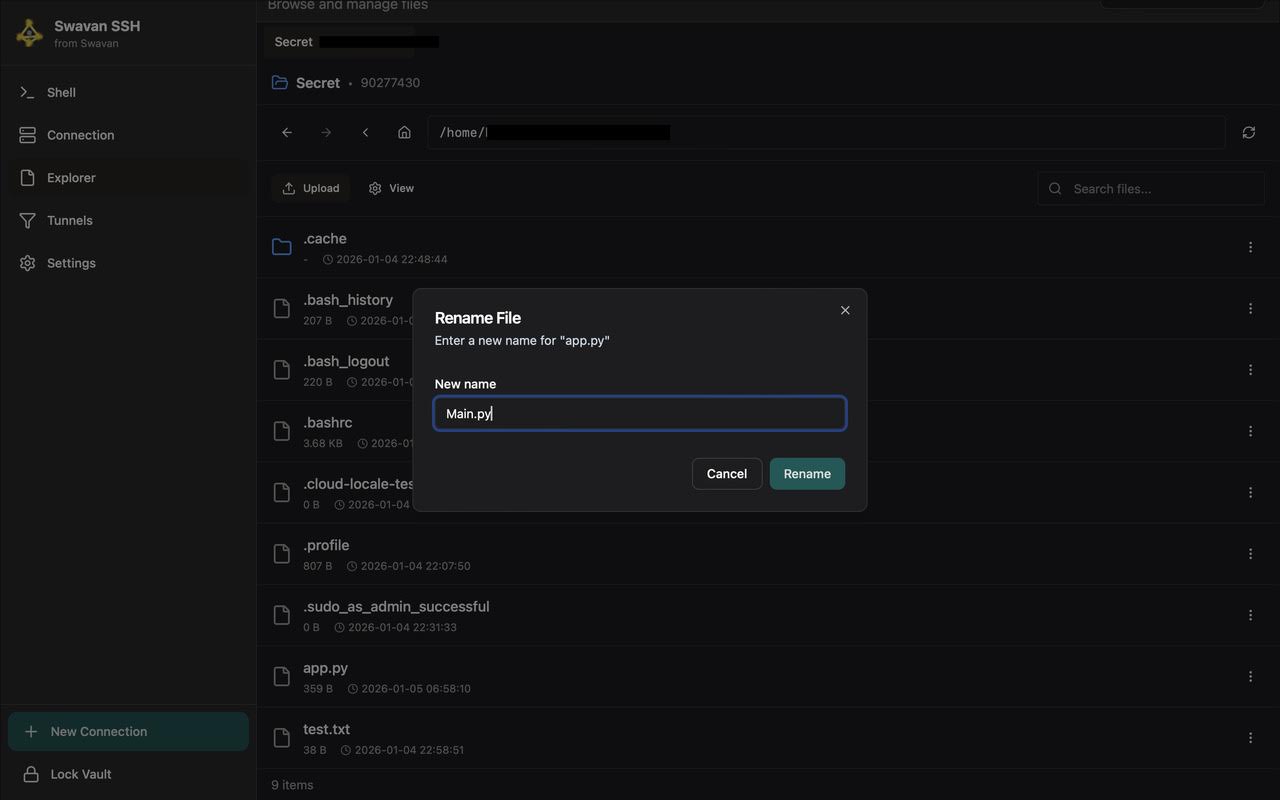
Long-press or use the context menu (⋯) on any file or folder and choose Rename. Enter the new name in the dialog that appears.

Rename file dialog with text input
Rename dialog — type the new filename and confirm
5
Deleting files and directories

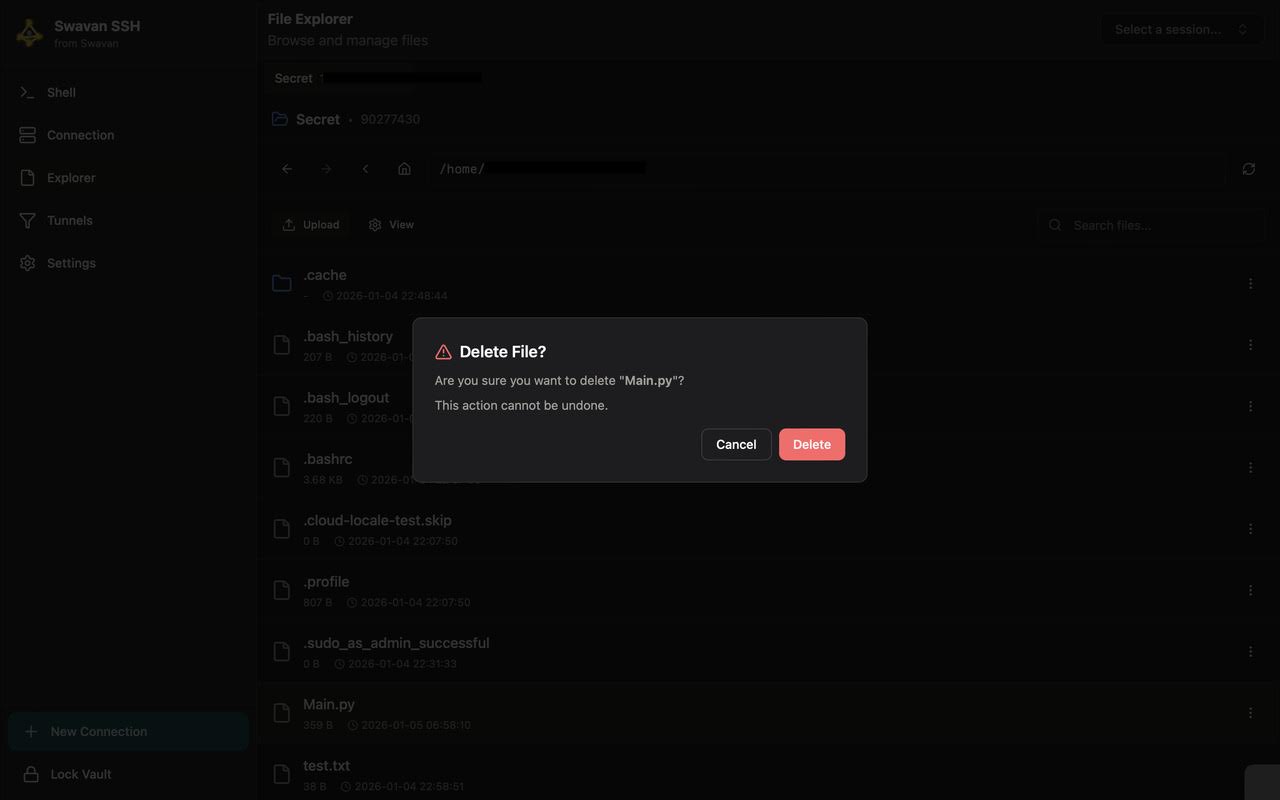
From the context menu, choose Delete. A confirmation dialog is shown before any deletion. Recursive deletion of non-empty directories is supported.

Delete confirmation dialog
Delete confirmation — destructive action requires explicit confirmation
[danger]
Deletion is permanent on the remote server. There is no trash/recycle bin. Double-check the path before confirming.
$ man file-transfers

Upload files from your local device to a remote server, or download remote files to your local machine. Supports recursive folder transfers and shows real-time progress.

1
Uploading files to the remote server

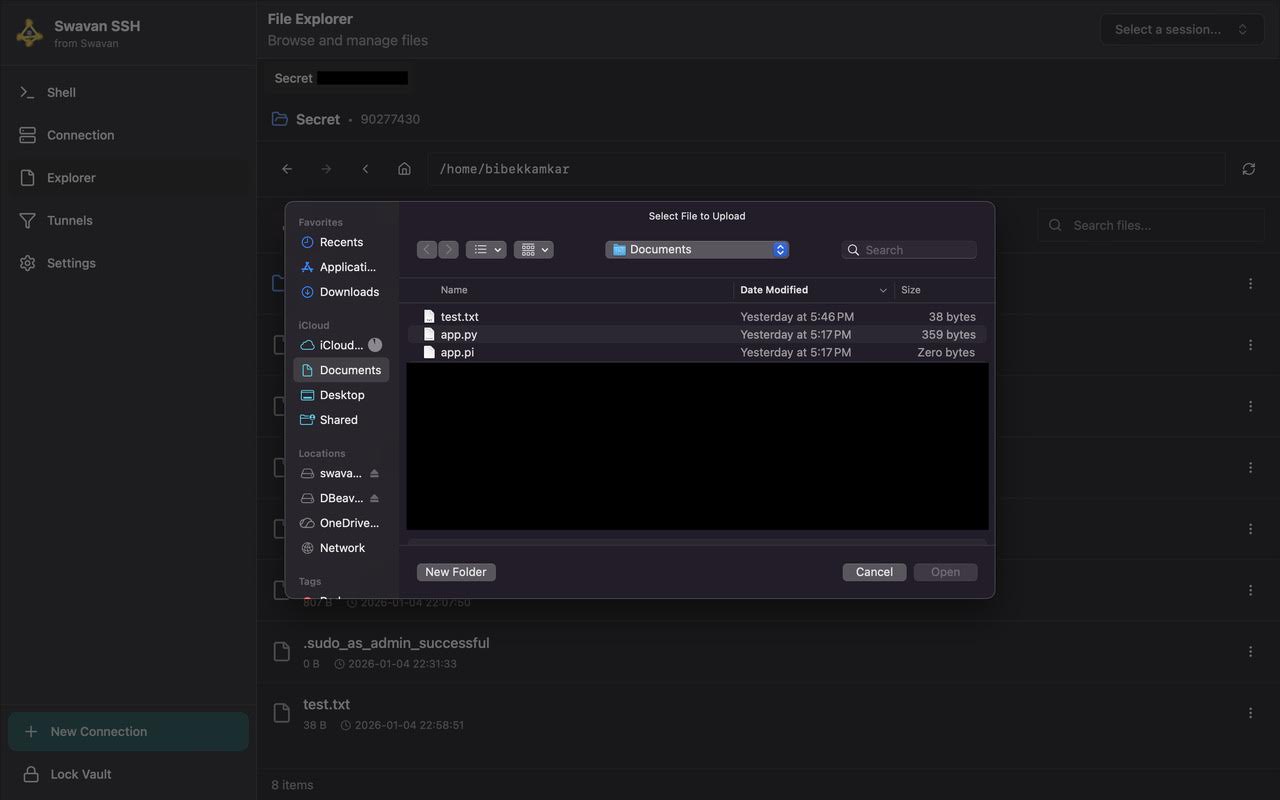
In the file browser, navigate to the destination directory on the remote server, then click the Upload button in the toolbar.

File picker dialog for upload
Upload — select local files to transfer to the current remote directory
  • Select one or multiple files from your local filesystem
  • Entire folders can be selected — the full directory tree is transferred recursively
  • Progress is shown per-file during transfer
2
After upload — verifying the transfer

After a successful upload the file browser refreshes automatically and shows the newly uploaded files alongside existing entries.

File browser after successful upload showing new files
Post-upload — newly transferred files appear in the listing
3
Downloading files from the remote server

Open the context menu (⋯) on any file and choose Download. On desktop you will be prompted to choose a local save location. On mobile the file is saved to the default Downloads folder.

[info]
File upload and download use SFTP under the hood — the same underlying SSH connection is reused, so no extra authentication is required.
$ man remote-file-editor

Edit remote files in place — no download-edit-upload cycle. Changes are saved directly back to the server. Supports syntax highlighting for 50+ file types.

1
Opening a file for editing

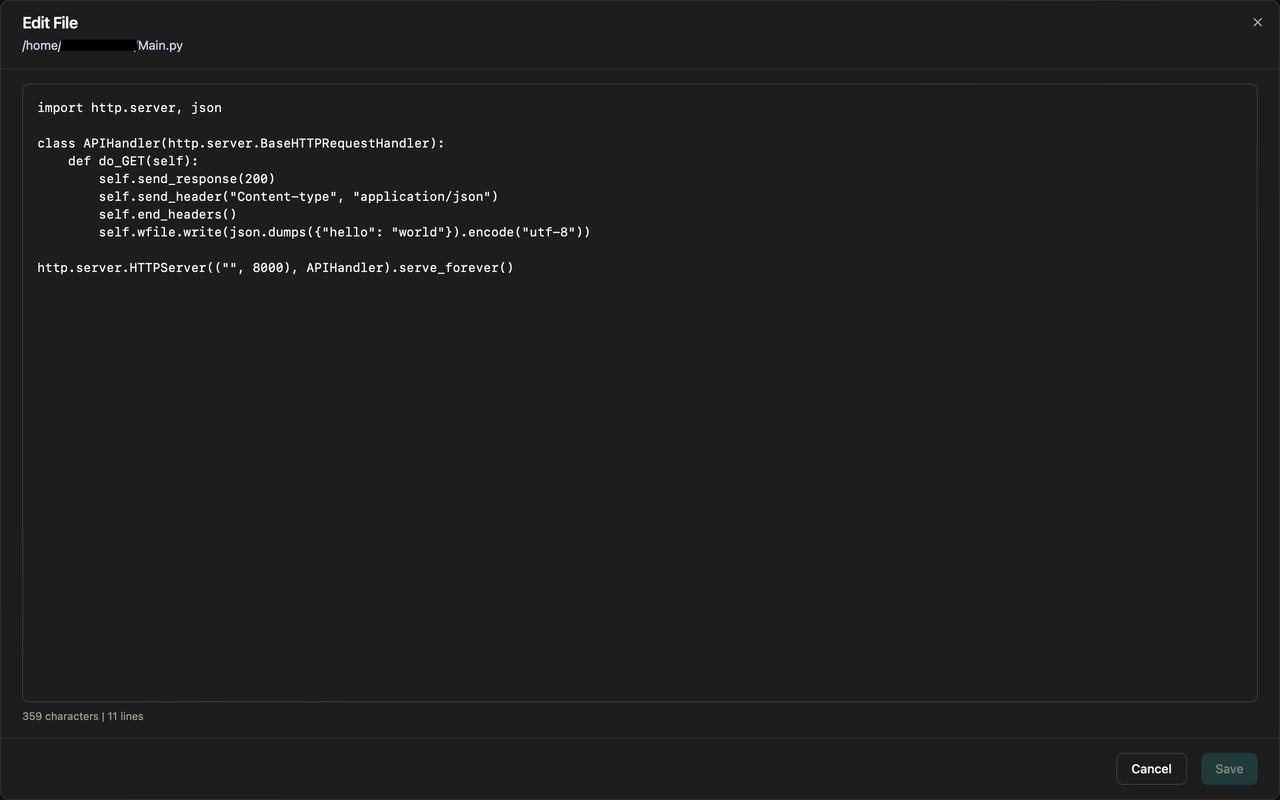
In the remote file browser, tap any supported text file. The file editor opens with the file contents loaded and syntax highlighting applied based on the file extension.

Remote file editor with syntax highlighting
File editor — syntax-highlighted editing of remote files
2
Supported file types

The editor recognizes 50+ file types for syntax highlighting, including but not limited to:

  • Config files — nginx, Apache, SSH config, systemd units, TOML, YAML, JSON, INI
  • Shell scripts — bash, zsh, fish, PowerShell
  • Web — HTML, CSS, JavaScript, TypeScript, JSX, TSX
  • Backend — Python, Go, Ruby, PHP, Java, Kotlin, Swift
  • Database — SQL, PostgreSQL, MySQL dialects
  • DevOps — Dockerfile, Makefile, GitHub Actions YAML, Terraform HCL
3
Saving changes to the server

Tap Save (or use the keyboard shortcut Ctrl+S / Cmd+S) to write changes back to the remote server over SFTP. An indicator confirms a successful save.

[tip]
The editor fetches the file content fresh on open and writes it back on save. If another process modified the file while you were editing, your save will overwrite those changes — same behavior as nano or vim.
$ man ssh-tunneling

Create and manage SSH tunnels for local port forwarding (ssh -L), remote port forwarding (ssh -R), and dynamic SOCKS5 proxy (ssh -D). Monitor tunnel status in real time.

1
Tunnel types overview
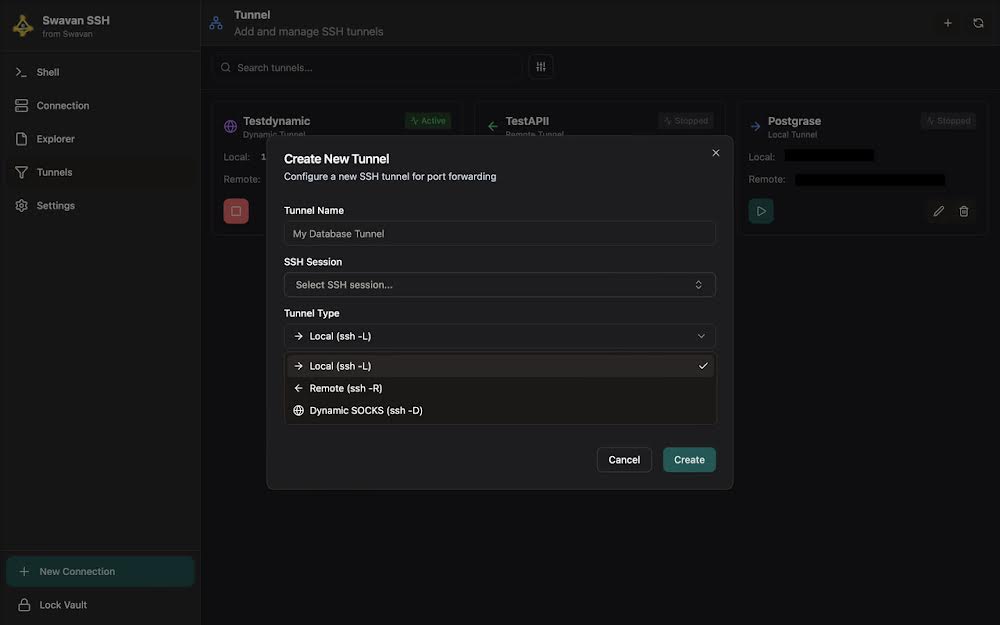
Local (ssh -L) Forwards a local port to a service reachable from the remote server. Use this to access a remote database or internal service via a local port.
Remote (ssh -R) Exposes a local port on the remote server. Use this to make a locally-running service accessible from the remote machine.
Dynamic SOCKS (ssh -D) Creates a SOCKS5 proxy on a local port. Configure your browser or system to route all traffic through it — encrypts everything via SSH.
2
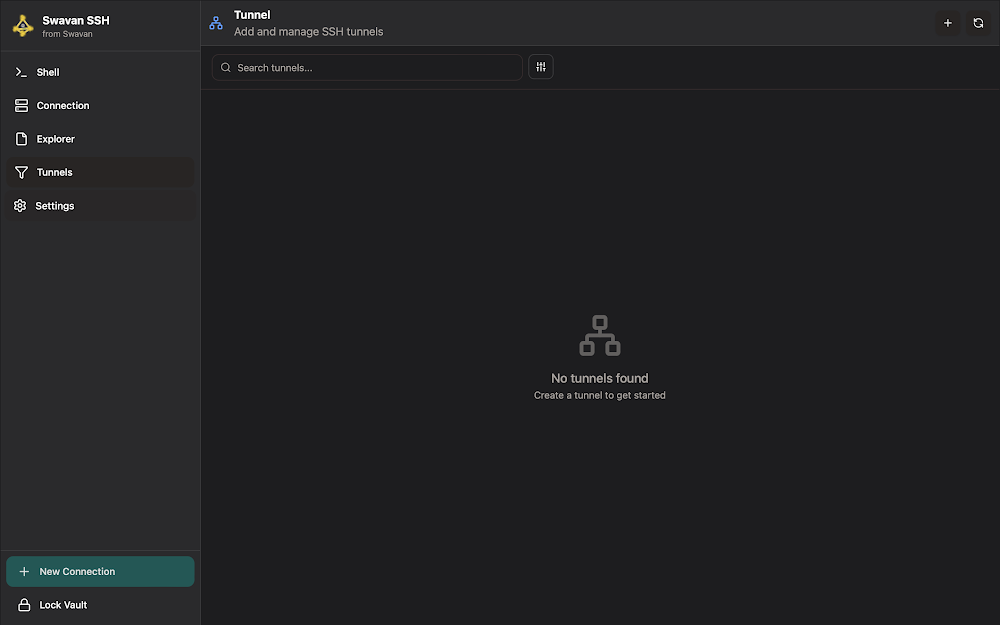
Tunnels screen

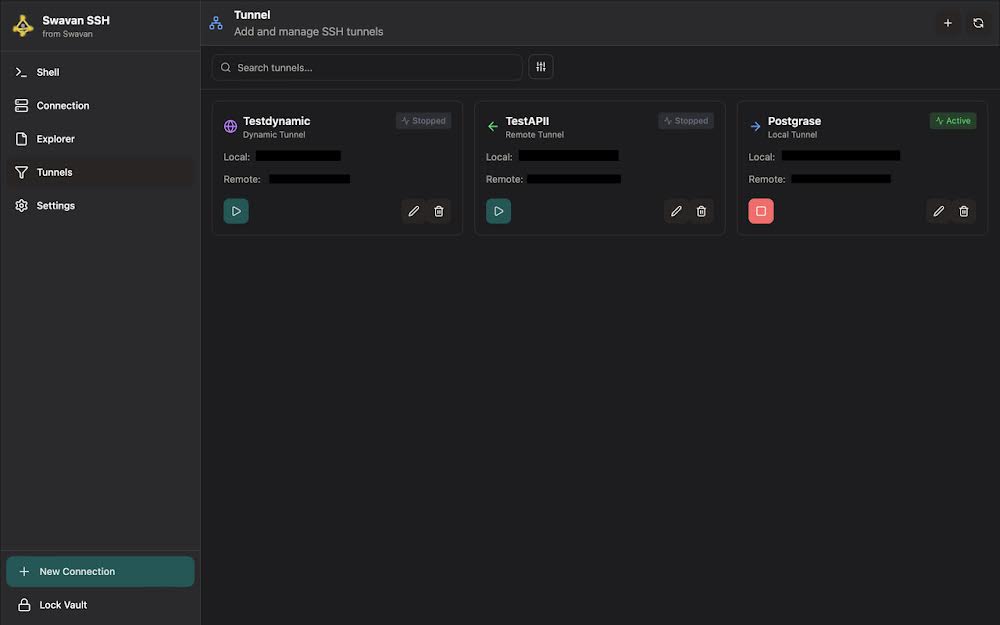
Navigate to the Tunnels section from the sidebar. All configured tunnels are listed with their type, port configuration, and current status (running / stopped).

Tunnels screen with empty state
Tunnels screen — lists all saved tunnel configurations
3
Creating a tunnel

Tap the + button to create a new tunnel. Configure the following fields:

Create tunnel dialog with type selection
Create tunnel — choose type and configure port mapping
Tunnel NameDescriptive label (e.g., "DB via production")
SSH ConnectionWhich saved connection to use as the tunnel gateway
Tunnel TypeLocal, Remote, or Dynamic SOCKS
Local PortPort on your local machine
Remote HostTarget host reachable from the SSH server (Local tunnels)
Remote PortTarget port on the remote side
4
Starting and stopping tunnels

Each tunnel entry has a toggle to start or stop forwarding. The status indicator shows green when active and gray when stopped.

Tunnel list showing an active local tunnel
Active local tunnel — status indicator shows running state
[info]
Tunnels require an active SSH session on the backing connection. If the session drops, the tunnel stops automatically and can be restarted with a single tap.
5
Using a dynamic SOCKS proxy

After creating a Dynamic SOCKS tunnel and starting it, configure your browser or OS to use a SOCKS5 proxy at 127.0.0.1:<local-port>.

# Example: configure curl to use the proxy
$ curl --socks5 127.0.0.1:5080 https://example.com
  • Firefox: Preferences → Network Settings → Manual Proxy → SOCKS5 Host: 127.0.0.1, Port: your local port
  • macOS System Proxy: System Settings → Network → Advanced → Proxies → SOCKS Proxy
$ man vnc-remote-desktop

Connect to remote desktops using VNC. Supports direct TCP connections and SSH-tunneled VNC for secure access through firewalls. Configurable color depth, JPEG quality, ARD authentication, and view-only mode.

1
Creating a VNC connection

VNC connections are created from the Connections screen alongside SSH connections. Tap + New Connection and select VNC as the connection type.

Name *Display name for this VNC target
Host *Hostname or IP of the VNC server
Port *VNC port (default: 5900 for VNC, 5800 for web VNC)
PasswordVNC authentication password
Auth TypeStandard VNC password or ARD (Apple Remote Desktop) authentication
2
Direct vs. SSH-tunneled VNC

Two connection modes are available:

  • Direct — connects to the VNC server's TCP port directly. The VNC server must be reachable from your device. VNC traffic is not encrypted unless TLS is configured on the server.
  • SSH-tunneled — routes VNC through an SSH tunnel. Select an existing SSH connection as the gateway. The VNC port never needs to be open on the firewall. All traffic is encrypted by SSH.
[tip]
SSH-tunneled VNC is strongly recommended. It eliminates the need to expose the VNC port to the internet and adds SSH-layer encryption on top of whatever VNC provides.
3
Display settings — color depth and JPEG quality

Adjust these settings to balance visual quality against bandwidth consumption:

Color Depth8-bit, 16-bit, or 24-bit. Lower depth reduces bandwidth. 24-bit is full color.
JPEG Quality0–9 scale. Higher values improve image sharpness; lower values reduce bandwidth. Recommended: 6 for LAN, 3–4 for WAN.
4
ARD authentication (Apple Remote Desktop)

If you are connecting to a macOS machine with Screen Sharing enabled, select ARD as the auth type and enter the macOS user credentials. ARD auth uses an Apple-specific challenge-response scheme over the VNC protocol.

[info]
ARD auth is not the same as a VNC password. Use the macOS user's account credentials (username + password), not a separate VNC password.
5
View-only mode

Enable View Only in the connection settings to observe the remote desktop without sending any keyboard or mouse input. Useful for monitoring and demonstrations.

6
Keyboard, mouse, and clipboard

When connected to a VNC session:

  • Mouse movements and clicks are forwarded to the remote desktop in real time
  • Keyboard input is forwarded with full modifier key support (Ctrl, Alt, Cmd, Shift)
  • Clipboard sync: text copied on your local device can be pasted on the remote, and vice versa (when supported by the VNC server)
$ man command-snippets

Save, organize, and quickly insert frequently-used commands into any terminal session. Tag and search snippets. Works as a script runner for repeatable tasks.

1
Creating a snippet

Navigate to Settings → Snippets or access the snippet library from the terminal toolbar. Tap + New Snippet and fill in:

TitleShort, descriptive name (e.g., "Tail nginx error log")
CommandThe full command text to insert
TagsOptional labels for grouping (e.g., "nginx", "logs", "linux")
DescriptionOptional notes about when to use the snippet
2
Tags and categories

Use tags to group snippets by topic, tool, or project. The snippet library can be filtered by tag or searched by title or command text, making it fast to locate a specific snippet even in a large collection.

  • Multiple tags per snippet are supported
  • Tags are shared across connections and sessions
  • Use consistent tagging conventions for best discoverability
3
Searching snippets

The snippet search bar performs a full-text search across snippet titles, command bodies, and tags in real time as you type.

[tip]
Searching by a tag name returns all snippets with that tag. Searching by part of a command (e.g., "journalctl") returns every snippet containing that text.
4
Inserting a snippet into the terminal

Open the snippet library from the terminal toolbar (the snippet icon). Tap a snippet to insert its command text at the terminal cursor. The command is injected into the active terminal — review it before pressing Enter to execute.

[info]
Snippets are inserted as text — not automatically executed. This gives you a chance to review or modify the command before sending it.
$ man p2p-connection-sharing

Share SSH connection profiles between devices over an encrypted peer-to-peer link. Peers are discovered automatically on the same local network using mDNS. QR code scanning available for mobile.

1
Enabling P2P sharing

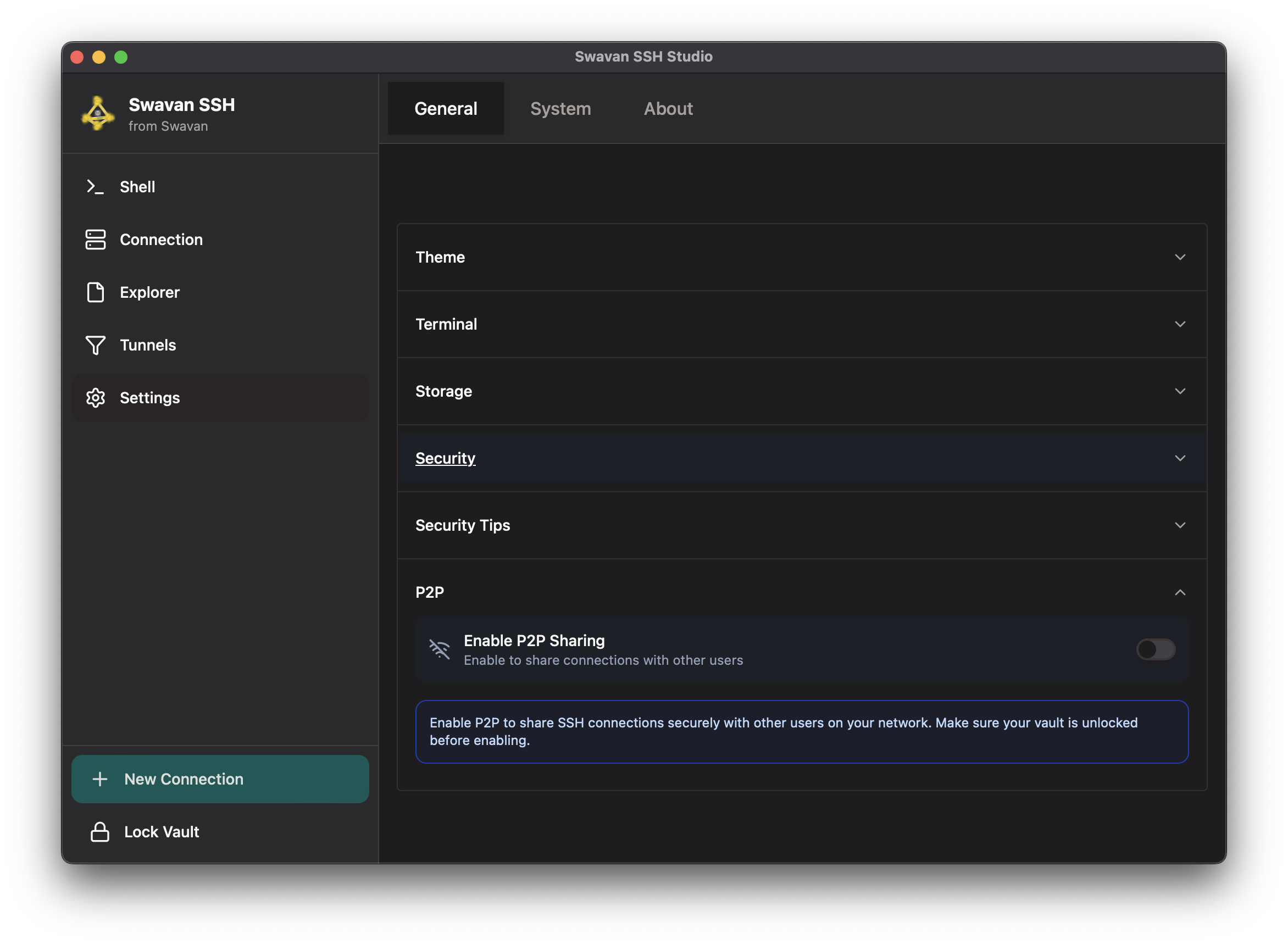
Go to Settings → General → P2P Settings and toggle Enable P2P Sharing. The vault must be unlocked before P2P can be enabled.

P2P sharing settings screen
P2P Settings — enable sharing and view discovered peers
[info]
Both devices must be on the same local network (same Wi-Fi or LAN segment). P2P uses mDNS (UDP port 5353) for discovery and QUIC for data transfer.
2
Peer discovery

Once P2P is enabled, the app automatically discovers other Swavan SSH Studio instances on the same network. Discovered peers appear in the peer list in Settings. No manual IP entry is required.

  • Discovery is automatic — no manual configuration needed
  • Peers appear within a few seconds if both devices have P2P enabled
  • If no peers appear, check the Windows Firewall section if you are on Windows
3
Sharing connection profiles

Select a peer from the discovered list, then choose which connection profiles to share. The selected profiles are encrypted using a one-time transfer key and sent to the peer device.

  • Profiles are decrypted on the receiving device using the shared transfer key
  • Credentials (passwords, private keys) are included in the encrypted transfer
  • The transfer key is temporary and discarded after use
4
QR code scanning (mobile)

On mobile, the receiving device can scan a QR code displayed on the sending device to establish the P2P connection and receive profiles without needing to type a transfer key manually.

  • On the sending device: tap Show QR Code in the peer sharing screen
  • On the receiving device: tap Scan QR Code and point the camera at the sender's screen
  • The QR code encodes the transfer key and peer address — valid for a single transfer session
$ man secure-vault

All credentials are encrypted locally using ChaCha20-Poly1305 with Argon2id key derivation. Lock, unlock, change password, and back up your vault. Biometric unlock available on supported devices.

1
Master password and encryption

The vault is protected by your master password. The password is run through Argon2id (a memory-hard KDF) to derive the encryption key — the password itself is never stored anywhere.

AlgorithmChaCha20-Poly1305 authenticated encryption
KDFArgon2id (memory-hard, GPU-resistant)
StorageSQLite database on the local device only
Cloud syncNone — your data never leaves the device
2
Biometric unlock

After unlocking the vault with your master password at least once, you can enable biometric unlock in Settings → General → Vault Security.

  • macOS — Touch ID
  • iOS — Face ID or Touch ID
  • Windows — Windows Hello (fingerprint, face, or PIN)
  • Android — fingerprint or device credentials

The vault key is stored in the platform's secure enclave (Keychain on Apple, Windows Credential Manager, Android Keystore). The master password is not stored.

3
Locking the vault

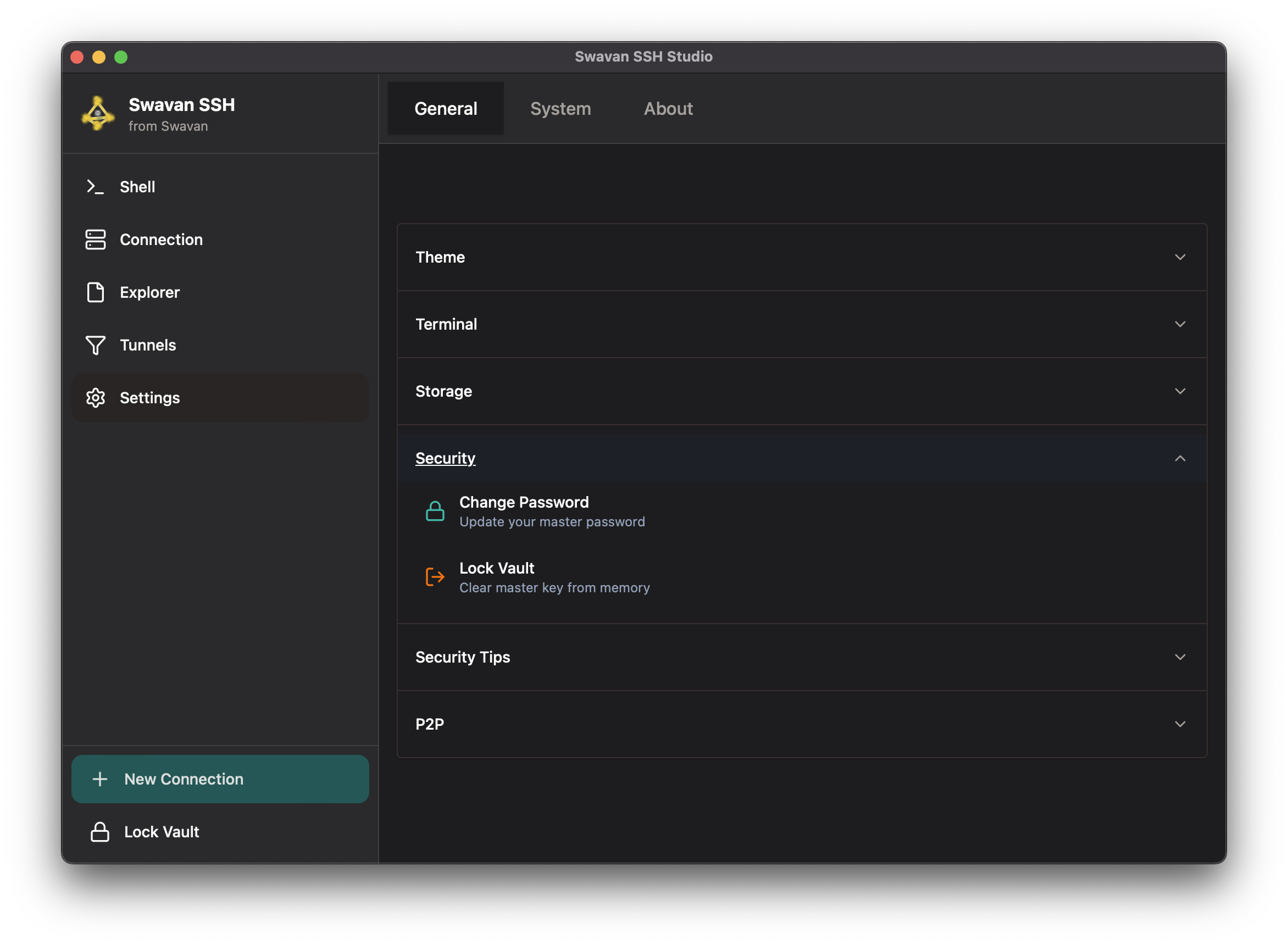
Tap Lock Vault at the bottom of the Connections screen, or from Settings → Security → Lock Vault. This immediately clears the vault key from memory — the app locks and requires your master password (or biometric) to continue.

[tip]
Lock the vault whenever you step away from your device to prevent unauthorized access to your SSH credentials.
4
Changing the master password

Go to Settings → General → Vault Security → Change Password. Enter your current password, then your new password (twice to confirm). All stored credentials are re-encrypted with the new key immediately.

Security settings with change password option
Vault security settings — change password and manage biometric unlock
5
Backup and restore

Export an encrypted backup of your vault from Settings → General → Storage. The backup file is encrypted with your master password and can be restored on any device running Swavan SSH Studio.

  • Backup format: encrypted archive containing all connections, tunnels, and configuration
  • The backup is useless without your master password — it is safe to store in cloud storage
  • To restore: choose "Restore from backup" on first launch or from the profile screen
$ man multi-profile-management

Create multiple independent vaults (profiles) on a single device. Switch between work, personal, or client profiles, each with their own connections, credentials, and settings. Transfer profiles between devices via P2P.

1
Creating a new profile

From the profile selection screen (shown before vault unlock), tap + New Profile. Each profile is a fully isolated vault with its own master password and connection database.

  • Profiles are listed on the profile picker screen
  • Each profile has its own master password — they are fully independent
  • Data in one profile is never accessible from another
2
Switching between profiles

Lock the current vault. The profile picker appears, letting you select and unlock a different profile. No data crosses between profiles during the switch.

3
Deleting a profile

From the profile picker, long-press or use the menu on a profile and choose Delete. Confirm the deletion. This permanently removes the vault database for that profile — all connections stored in it are lost.

[danger]
Profile deletion is irreversible. Export a backup before deleting a profile if you may need the connections later.
4
P2P profile transfer

Transfer a complete profile from one device to another using P2P. On the sending device, go to Settings → General → P2P Settings → Share Profile. The receiving device must be on the same network with P2P enabled.

  • The entire vault (all connections and credentials) is encrypted and sent
  • The receiving device creates a new profile from the transferred data
  • Both devices retain independent copies after the transfer
$ man terminal-customization

Personalize your terminal with 8 font choices, adjustable font size, custom foreground/background colors, and cursor style. Preferences are per-device and stored locally.

1
Opening terminal preferences

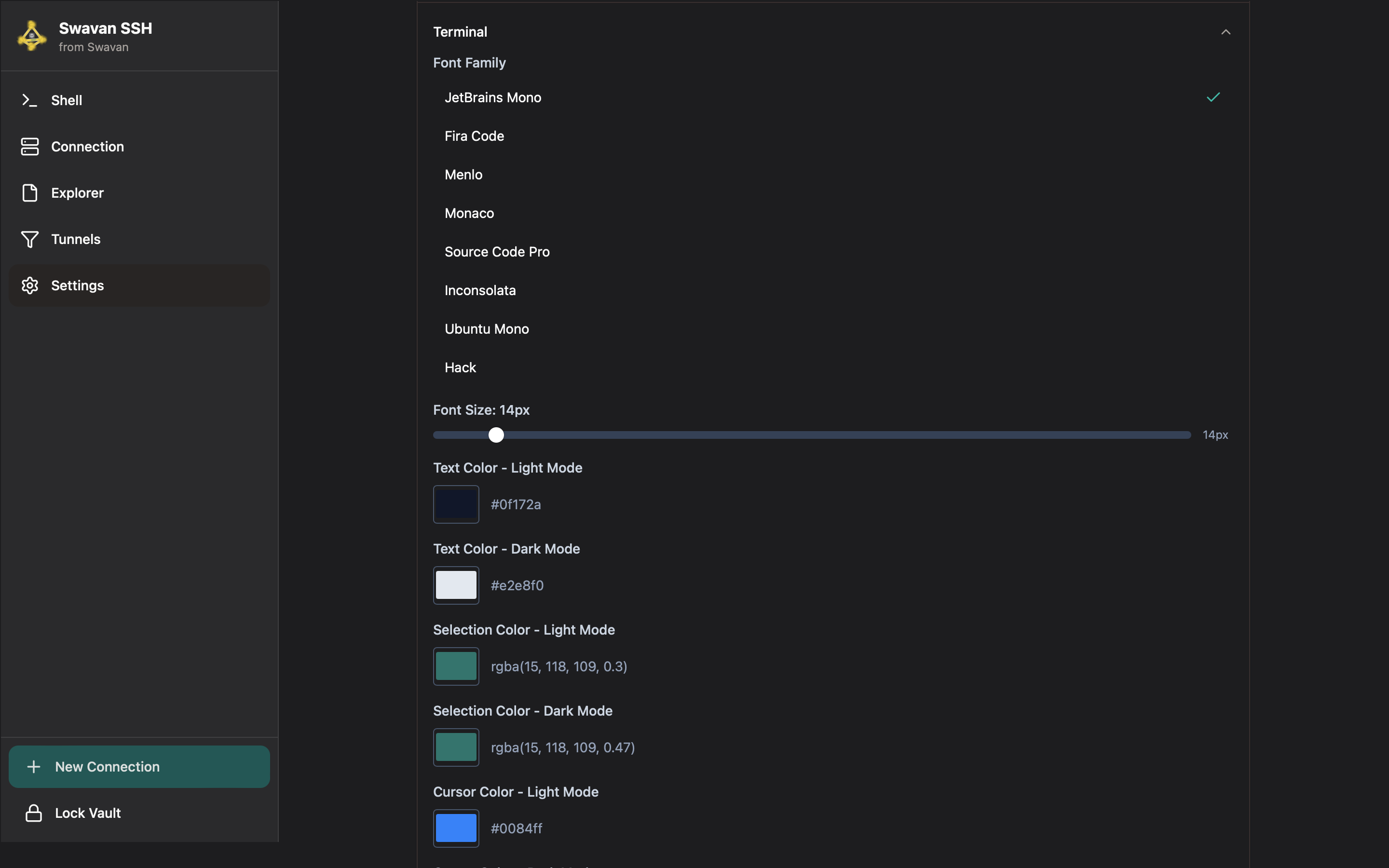
Navigate to Settings → General → Terminal. Changes are applied live — you can see them reflected in any open terminal sessions immediately.

Terminal customization settings panel
Terminal preferences — font, size, and color settings
2
Font selection

Eight monospace fonts are available, embedded directly in the app so they work consistently across all platforms:

  • JetBrains Mono
  • Fira Code
  • Cascadia Code
  • Source Code Pro
  • IBM Plex Mono
  • Inconsolata
  • Hack
  • Ubuntu Mono
3
Font size

Use the font size slider to adjust text size. The app has sensible platform defaults — 17px on desktop, 10px on mobile — with a minimum of 6px.

[info]
Font size changes resize the terminal grid via FitAddon — the number of columns and rows updates automatically to match the new size.
4
Terminal colors and theme

The terminal color scheme follows the app theme (light / dark / system). In the terminal customization panel you can also set a custom foreground color, background color, and cursor color independent of the app theme.

$ man application-logs

Built-in log viewer for diagnosing connection issues, P2P problems, and other application behavior. Search, filter by level, and clear logs from within the Settings panel.

1
Accessing the log viewer

Navigate to Settings and tap the Logs button (scroll icon) in the settings navigation bar. The log viewer loads the current log file automatically.

  • Logs are loaded from disk when the panel opens
  • Tap the Refresh button to reload after new log entries are written
  • Logs scroll from oldest at the top to newest at the bottom
2
Searching and filtering

Use the search input and the log level dropdown to narrow down entries:

Search boxFilters log lines by any text keyword (case-insensitive, real-time)
Level filterALL / ERROR / WARN / INFO / DEBUG
Color codingERROR = red · WARN = amber · DEBUG = gray · INFO = default
[tip]
Combine level filter "ERROR" with a keyword search like "p2p" or "sftp" to isolate failures from a specific subsystem quickly.
3
Clearing logs

Tap the trash icon in the log viewer toolbar. This erases the log file on disk and clears the viewer. Useful to start with a clean log before reproducing an issue.

[danger]
Clearing logs is permanent. The log file is overwritten and previous entries cannot be recovered. Copy any relevant entries before clearing.
$ man settings

App-wide configuration — theme, terminal preferences, keyboard shortcuts, storage, vault security, P2P, and module visibility. Four top-level tabs: General, System, Logs, About.

1
Settings overview

Open Settings from the sidebar. Four navigation tabs are shown as icon-only buttons at the top: General, System, Logs, and About.

Main settings screen with four tab sections
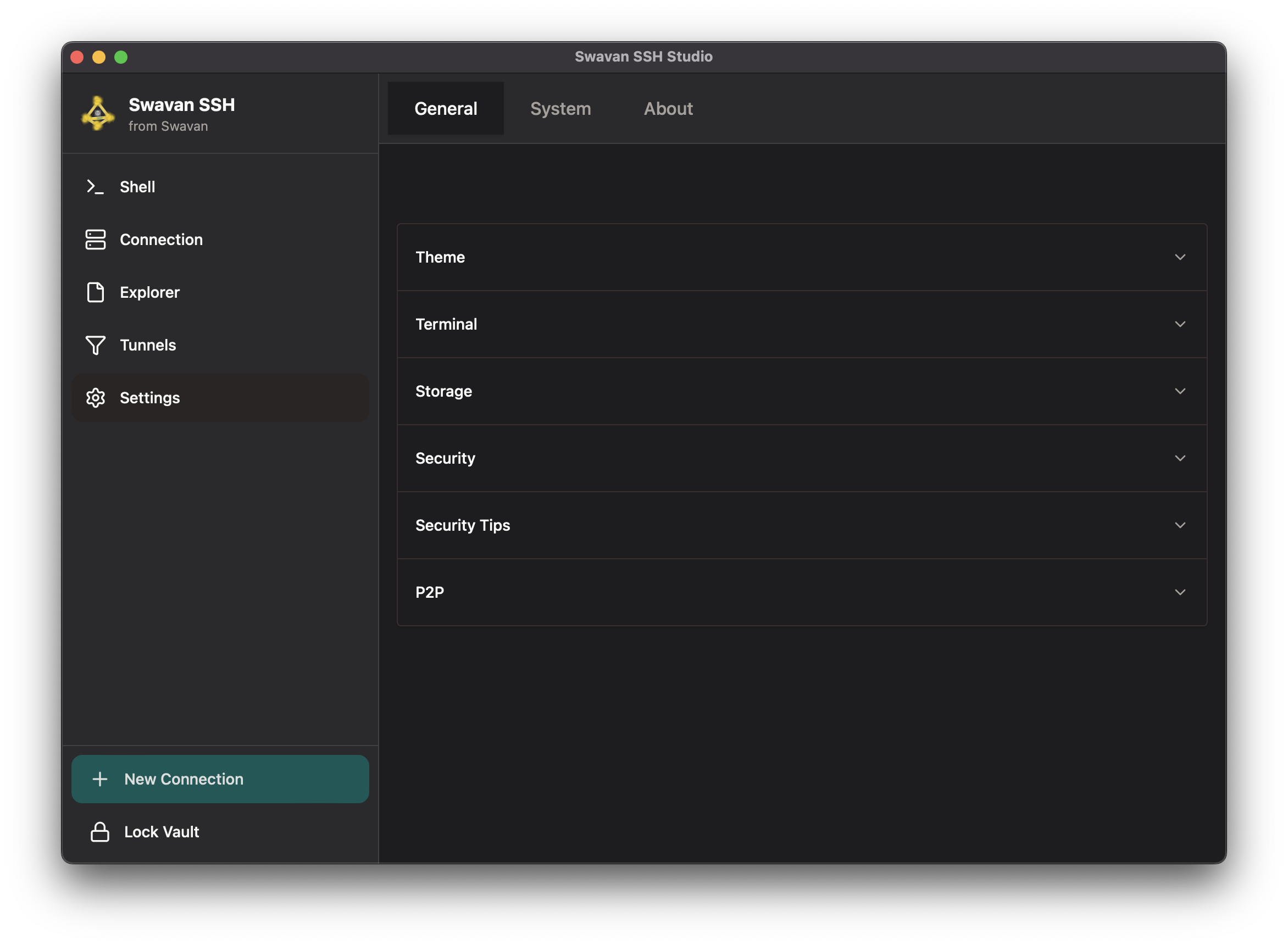
Settings — four tabs: General, System, Logs, About
2
General tab

The General tab contains all user-configurable preferences organized as an accordion:

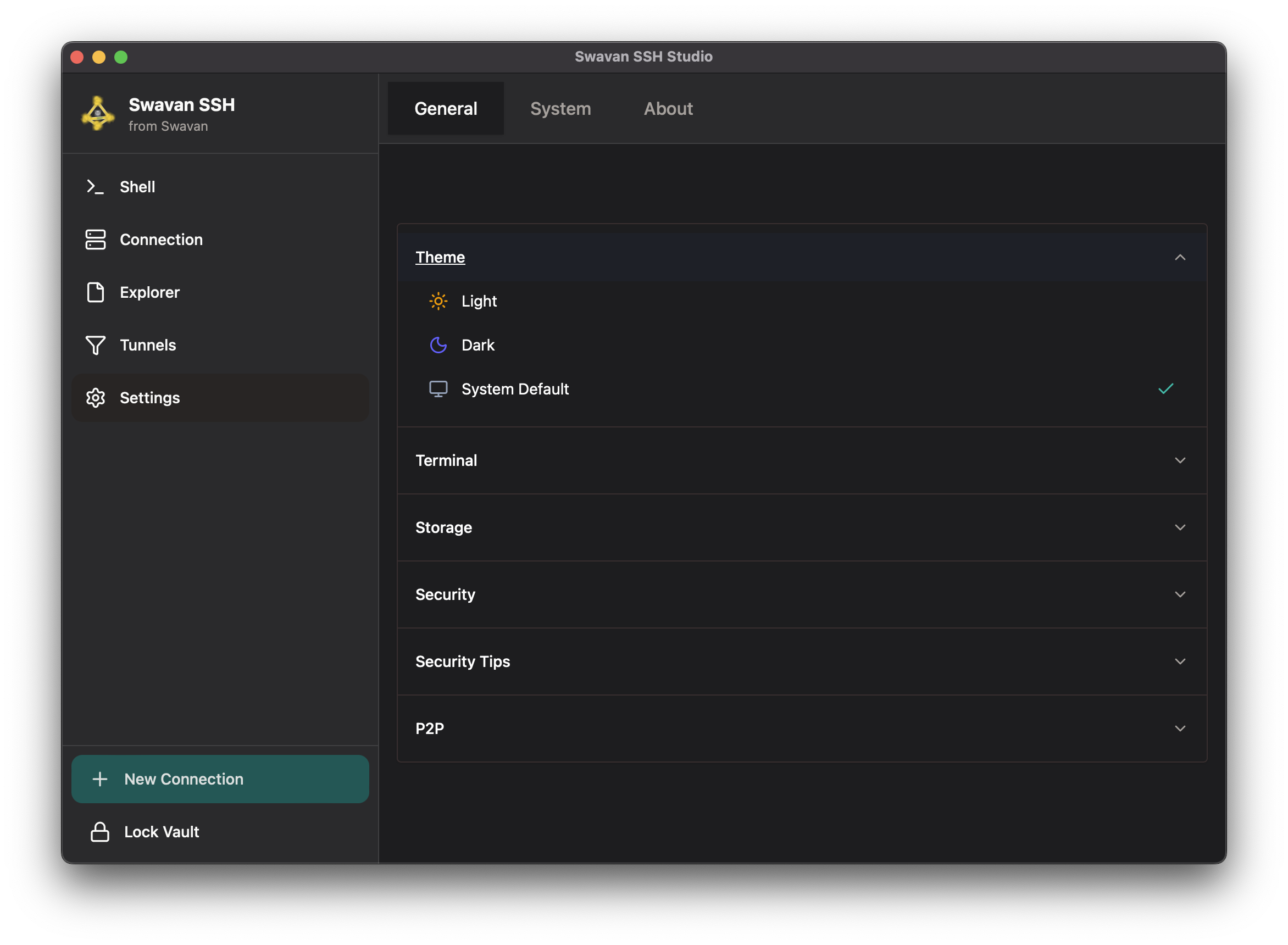
  • Theme — Light, Dark, or System. Switches the entire UI including the terminal.
  • Terminal — Font family, font size, cursor style, custom colors.
  • File Executors — Configure which applications open specific file types in the remote editor.
  • Keyboard Shortcuts — View and customize keybindings for terminal operations, tab management, and navigation.
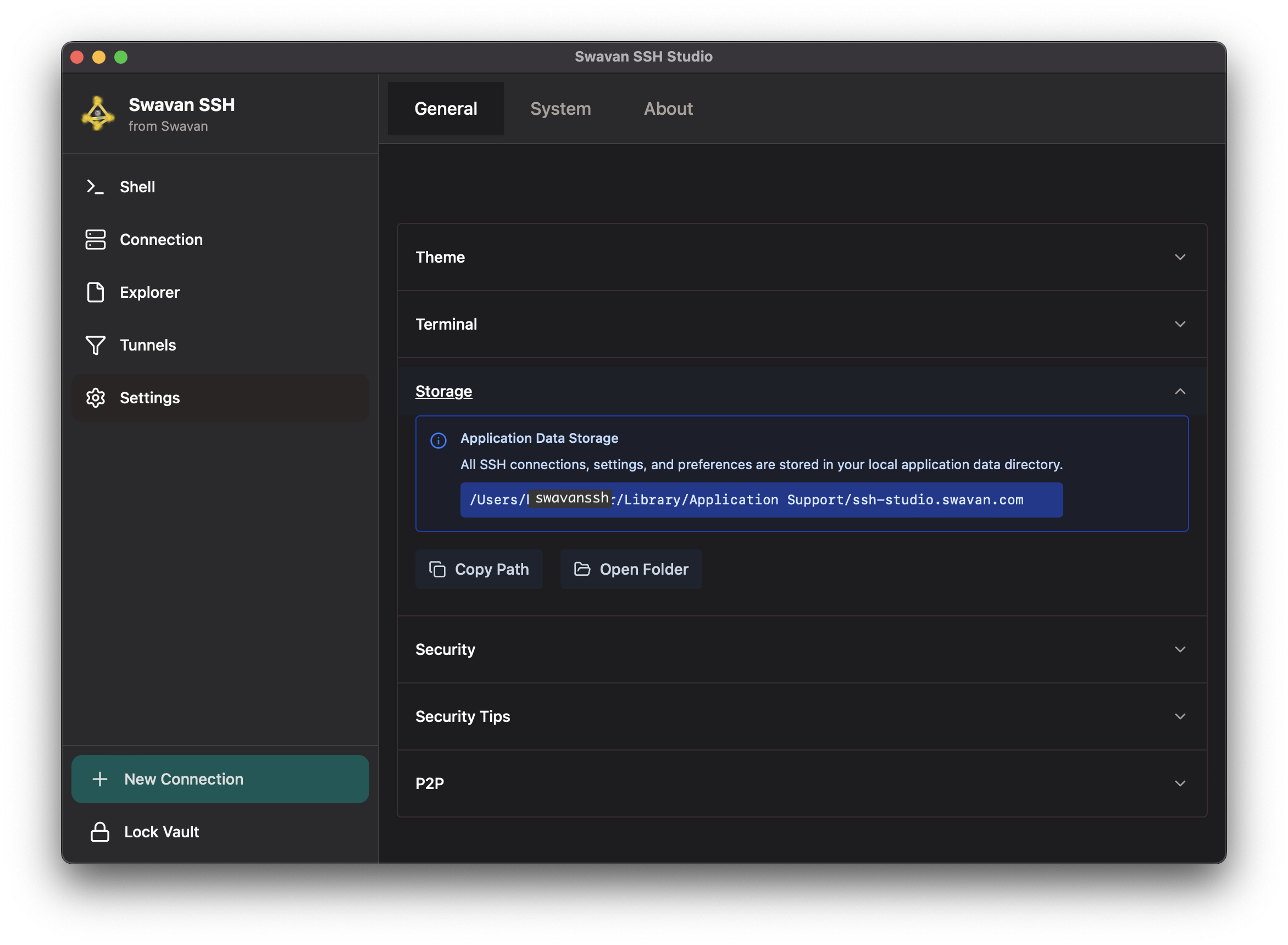
  • Storage — View the on-disk location of the SQLite database, copy the path, or open the folder.
  • Vault Security — Change master password, enable/disable biometric unlock.
  • P2P Settings — Enable P2P sharing, view discovered peers.
  • Receive Connections — Start receiving mode to accept profiles from another device.
3
Theme customization
Theme selection with Light, Dark, System options
Theme settings — choose between Light, Dark, or System theme
LightBright backgrounds, optimal for well-lit environments
DarkNear-black backgrounds, reduced eye strain in low light
SystemAutomatically follows the OS preference (dark mode toggle)
4
Keyboard shortcuts

The keyboard shortcuts panel lists all configurable keybindings grouped by category. Click a shortcut to reassign it. Shortcuts support modifier keys (Ctrl, Alt/Option, Cmd/Win, Shift).

[info]
Keyboard shortcuts are platform-aware — the same action uses Cmd on macOS and Ctrl on Windows/Linux. The settings panel shows the correct modifier for your platform.
5
Storage settings
Storage settings showing database path
Storage — view and copy the local database path
  • Shows the full path to the SQLite database on your device
  • Tap Copy Path to copy it to the clipboard
  • On desktop, tap Open Folder to reveal the database directory in Finder/Explorer
$ man installation-linux

Swavan SSH Studio ships as an AppImage for Linux — a self-contained executable that works on most distributions without installation. FUSE is required to run AppImages.

1
Download the AppImage

Visit the GitHub Releases page and download the .AppImage file for your architecture.

  • x86_64 — most desktop and server CPUs
  • aarch64 — ARM64 (Raspberry Pi 4/5, ARM servers)
2
Make it executable
$ chmod +x swavan-ssh-studio_*.AppImage
3
Install FUSE (if needed)

AppImages require FUSE to mount themselves. Most distributions include it. If you see an error like "FUSE library not found", install it:

# Ubuntu 24.04+
$ sudo apt install libfuse2t64

# Ubuntu 22.04 and older, Debian
$ sudo apt install libfuse2

# Fedora
$ sudo dnf install fuse-libs

# Arch Linux
$ sudo pacman -S fuse2
4
Run the AppImage

Double-click the AppImage in your file manager, or launch from the terminal:

$ ./swavan-ssh-studio_*.AppImage
5
NixOS

NixOS does not support AppImages directly due to its immutable filesystem layout. Two options:

# Option 1: Enable AppImage support in configuration.nix
# programs.appimage.enable = true;
# programs.appimage.binfmt = true;
$ sudo nixos-rebuild switch

# Option 2: Use appimage-run from nixpkgs
$ nix-shell -p appimage-run --run "appimage-run ./swavan-ssh-studio_*.AppImage"
$ man windows-firewall-p2p

Windows Firewall may block P2P peer discovery (mDNS on UDP 5353) and data transfer (QUIC). Add explicit firewall exceptions to enable P2P sharing between Windows devices or between Windows and other platforms.

1
Understanding the issue

P2P sharing uses mDNS (multicast DNS, UDP port 5353) for automatic peer discovery. Windows Firewall blocks mDNS multicast by default for applications that have not been granted an explicit exception.

  • Symptom: P2P enabled but no peers discovered, or sharing times out
  • Cause: Windows Firewall blocks UDP 5353 (mDNS) and QUIC protocol traffic
  • Fix: Add inbound firewall rules via PowerShell (run as Administrator)
2
Adding firewall exceptions (PowerShell as Administrator)
# Allow mDNS for peer discovery
PS> New-NetFirewallRule -DisplayName "Swavan SSH Studio mDNS" `
    -Direction Inbound -Protocol UDP -LocalPort 5353 -Action Allow

# Allow QUIC for encrypted data transfer
PS> New-NetFirewallRule -DisplayName "Swavan SSH Studio QUIC" `
    -Direction Inbound -Protocol UDP -LocalPort 1024-65535 -Action Allow `
    -Program "C:\Program Files\Swavan SSH Studio\swavan-ssh-studio.exe"
[info]
Adjust the -Program path in the second command if you installed Swavan SSH Studio in a different location. Right-click the app shortcut → "Open file location" to find the correct path.
3
Verifying the configuration
  • Restart Swavan SSH Studio on all devices involved
  • Go to Settings → General → P2P Settings and confirm P2P is enabled on both devices
  • Ensure both devices are on the same local network (same Wi-Fi or LAN)
  • Peers should appear in the peer list within a few seconds
4
Removing firewall rules (if no longer needed)
PS> Remove-NetFirewallRule -DisplayName "Swavan SSH Studio mDNS"
PS> Remove-NetFirewallRule -DisplayName "Swavan SSH Studio QUIC"
$ man quick-start

Learn how to set up your first SSH connection and start using Swavan SSH Studio.

1
Create Your Vault

When you first launch the app, you'll be prompted to create a master password. This password encrypts all your credentials.

[info]
Choose a strong master password — it's the only password you need to remember!
2
Add Your First Connection

Click "New Connection" in the sidebar and fill in your server details:

Name: My Server
Host: 192.168.1.100 or myserver.com
Port: 22 (default SSH port)
Username: your_username
Auth: Password or Private Key
3
Connect to Your Server

Click on your saved connection to open a terminal session. You can open multiple sessions by clicking the connection again.

[info]
Right-click on a connection for quick actions like Edit, Delete, or Share.
$ man ssh-tunneling-guide

Learn how to securely access remote services through SSH tunnels.

1
What is SSH Tunneling?

SSH tunneling (port forwarding) creates an encrypted connection between your local machine and a remote server, allowing you to securely access services that aren't directly exposed to the internet.

How it works: Your Computer (localhost:5433) → Encrypted SSH Tunnel → Remote Server (postgres:5432)

  • Local Port Forwarding — Forward a port from your local machine to a service on the remote server. Use case: Access a database running on your server from your local machine. Example: Local Port 5433 → Remote Host:5432
  • Remote Port Forwarding — Forward a port from the remote server back to a service on your local machine. Use case: Expose your local development server to the remote machine. Example: Remote Port 8080 → localhost:3000
2
Navigate to Tunnels

Go to the Tunnels section in the sidebar, or click the tunnel icon on a connection card.

3
Create New Tunnel

Click "Add Tunnel" and configure your tunnel:

Connection: Select your SSH connection
Type: Local or Remote forwarding
Local Port: Port on your machine (e.g., 5433)
Remote Host: Target host (e.g., localhost)
Remote Port: Target port (e.g., 5432)
4
Start the Tunnel

Click the Start button to activate the tunnel. The status indicator will turn green when active.

[info]
Enable "Auto-start" to automatically start this tunnel whenever you connect.
5
Use Your Tunnel

Connect to your local port as if the remote service was running locally:

# Connect to PostgreSQL through tunnel
$ psql -h localhost -p 5433 -U myuser -d mydb

# Access Redis through tunnel
$ redis-cli -h localhost -p 6380
6
Real-World Example: Access PostgreSQL on a Remote Server

Say you have a PostgreSQL database running on your server at port 5432, but it's not exposed to the internet for security reasons.

  • Create a tunnel: Local Port 5433 → Remote localhost:5432
  • Start the tunnel
  • Connect using: psql -h localhost -p 5433 -U postgres
[info]
Your database traffic is now encrypted through the SSH tunnel!
$ man connection-sharing

Securely share your SSH configurations with teammates or across devices.

1
P2P Device Transfer — On the Sending Device

Right-click on a connection and select "Share", or go to Settings → Transfer Setup.

2
Choose What to Share

Select whether to include credentials:

  • With Credentials — Share complete connection including password/key
  • Without Credentials — Share only host, port, and username
3
Get the Transfer Key

A unique transfer key will be generated. Share this key with the recipient.

Transfer Key: XXXX-XXXX-XXXX-XXXX
4
On the Receiving Device

Open Swavan SSH Studio and select "Receive from Device" during vault setup, or go to Settings → Receive Transfer.

5
Enter Transfer Key

Enter the transfer key and click "Receive". The connections will be securely transferred.

[info]
All transfers are encrypted end-to-end. The key is only valid for one transfer.
6
Backup & Restore — Create a Backup

Go to Settings → Backup and click "Create Backup". Choose a location to save the encrypted backup file.

7
Transfer the Backup File

Copy the .backup file to your other device via USB, cloud storage, or any secure method.

8
Restore from Backup

On the new device, select "Restore from Backup" during vault setup. Select the backup file and enter your master password.

[info]
You'll need your original master password to restore the backup!
$ man terminal-usage

Master the SSH terminal for efficient remote server management.

1
Starting a Session

Click on any saved connection to open a new terminal session. The connection will be established automatically.

  • Green — Connected, session is active
  • Yellow — Connecting, establishing connection
  • Red — Disconnected, session ended
2
Managing Multiple Sessions

Open multiple sessions by clicking the same or different connections. Each session opens in a new tab.

[info]
Click the "+" button to quickly open another session to the same server.
3
Terminal Customization

Personalize your terminal in Settings → Terminal Preferences:

  • Font — JetBrains Mono, Fira Code, Monaco, and more
  • Font Size — Adjustable from 10px to 64px
  • Colors — Custom text, cursor, and selection colors
  • Theme — Separate colors for light and dark mode
4
Disconnecting Safely

Click the X on the session tab or use the disconnect button. Running processes will be terminated.

[info]
Use tmux or screen to keep processes running after disconnect.
$ man file-management

Browse, transfer, and edit files on remote servers.

1
Opening the File Browser

Click the Explorer icon in the sidebar while connected to a server, or click the folder icon on a connection card.

2
Navigating Directories

Click folders to navigate, use the breadcrumb path, or click the home icon to go to your home directory.

  • Home button — Go to user home directory
  • Back button — Previous directory in history
  • Forward button — Next directory in history
  • Refresh button — Reload current directory
3
Transferring Files

Upload and download files with real-time progress tracking:

  • Upload — Click the upload button and select local files to transfer to the server
  • Download — Right-click a file and select "Download" to save it locally
4
Editing Remote Files

Double-click any text file (up to 5MB) to open it in the built-in editor. Changes save directly to the server.

[info]
The editor supports 50+ file types with syntax awareness!
5
File Operations

Right-click on files or folders for additional options: Rename, Delete, New Folder, Copy Path.

$ man tips-and-tricks

Get the most out of Swavan SSH Studio with these power-user tips.

1
Security Best Practices
  • Use SSH keys instead of passwords when possible
  • Lock your vault when stepping away
  • Use strong, unique master password
  • Regularly backup your vault
  • Don't share credentials over insecure channels
2
Productivity Boosters
  • Set a landing path to start in a specific directory
  • Use descriptive connection names for easy search
  • Enable auto-start for frequently used tunnels
  • Open multiple file browsers in tabs
  • Use the home button for quick navigation
3
Troubleshooting
  • Connection timeout? Check firewall and SSH service
  • Authentication failed? Verify credentials and key permissions
  • Tunnel not working? Ensure the target service is running
  • P2P not discovering peers on Windows? Add firewall exceptions (see Windows Firewall panel)
  • AppImage not running? Install libfuse2 and check permissions
4
Hidden Features
  • Double-click connection name to quick connect
  • Drag tabs to reorder them
  • Right-click for context menus everywhere
  • Use search to filter connections instantly
  • Theme automatically follows system preference
5
Cross-Platform Tips
  • Backup works across all platforms
  • P2P sharing works on same network
  • Settings sync via backup/restore
  • Private keys work on all platforms
  • Tunnels work identically everywhere
6
Common Use Cases
  • Database Access — Create a tunnel to access PostgreSQL, MySQL, or Redis from local tools. Example: localhost:5433 → server:5432
  • Web Service Access — Access internal web dashboards or APIs only available on the server's localhost. Example: localhost:8080 → server:3000
  • Monitoring Access — Connect to Grafana, Prometheus, or other monitoring tools on internal ports. Example: localhost:3001 → server:3000
  • Development Sync — Expose your local dev server to a remote machine for testing webhooks. Example: Remote server:8080 → localhost:3000